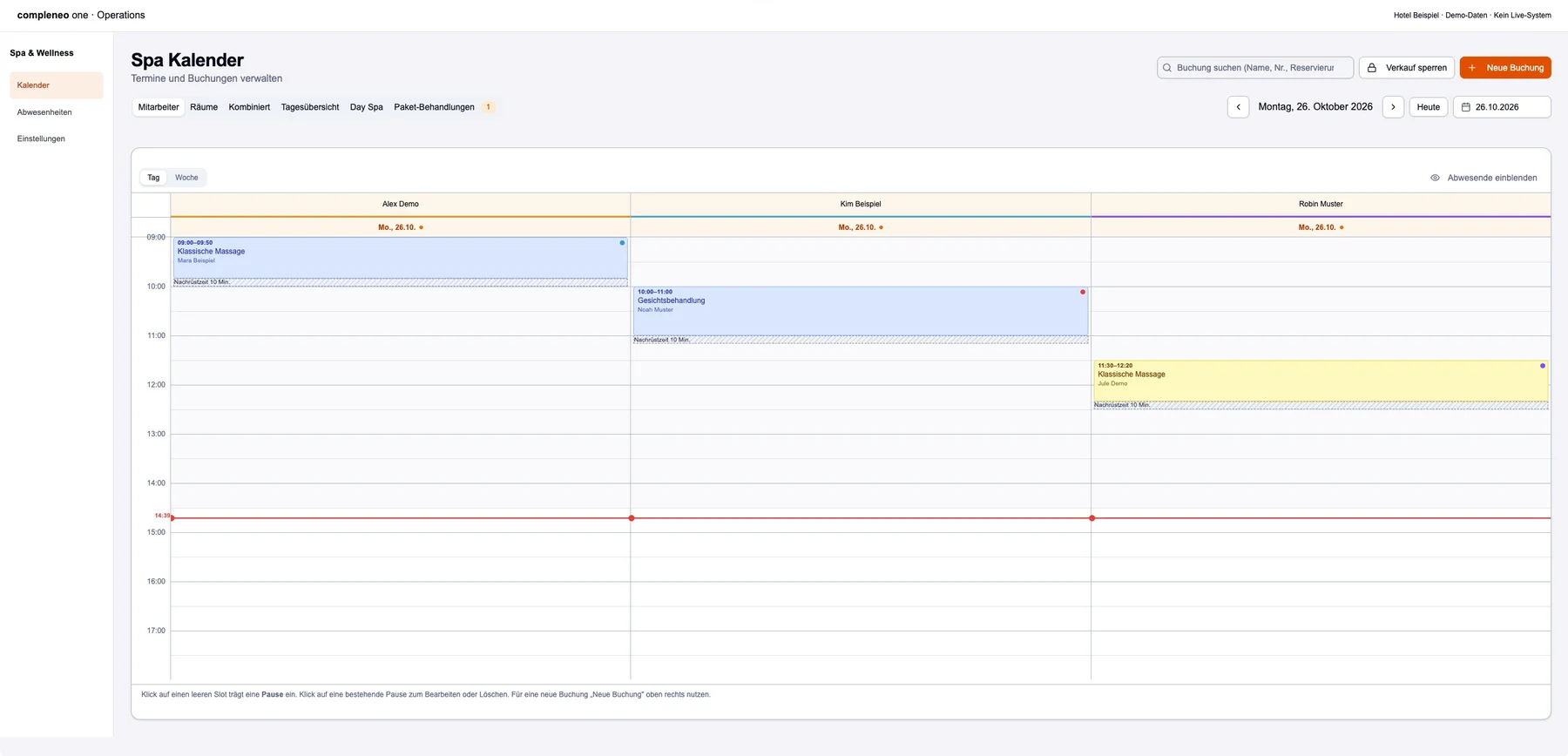
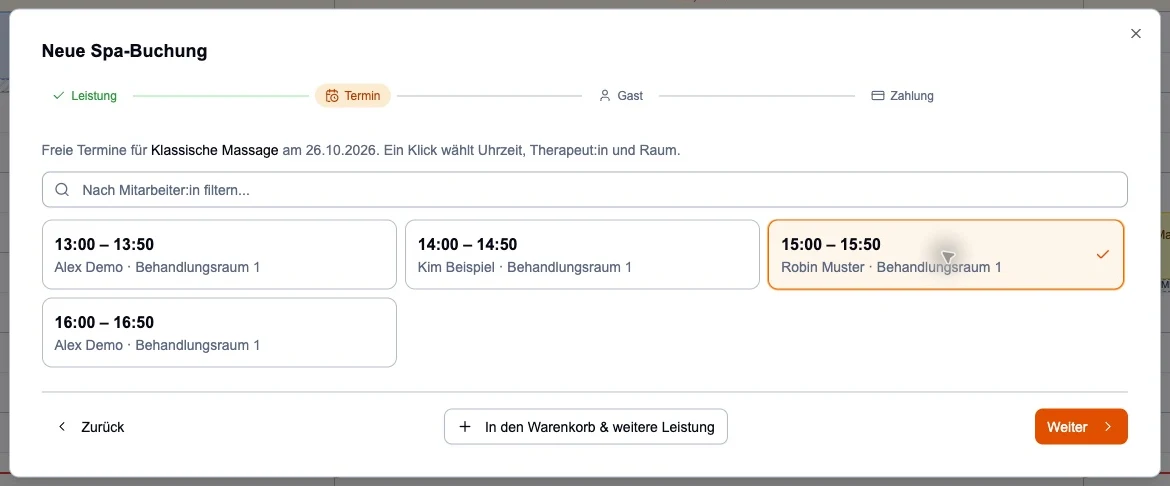
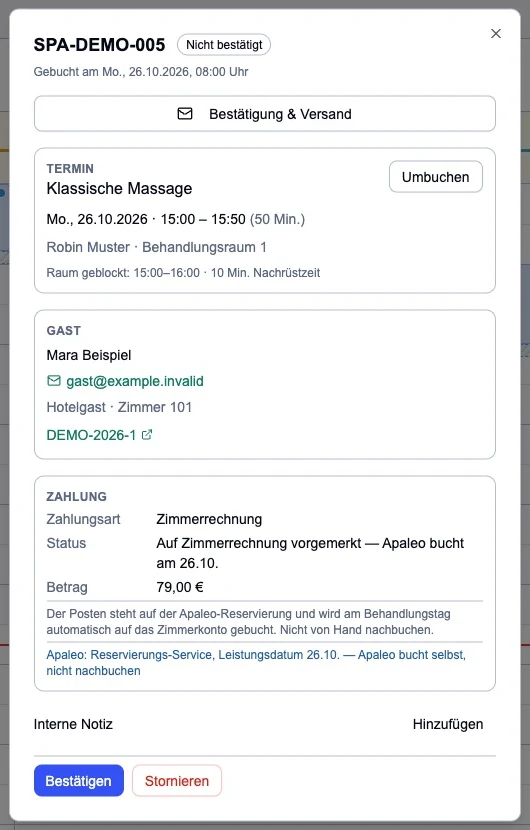
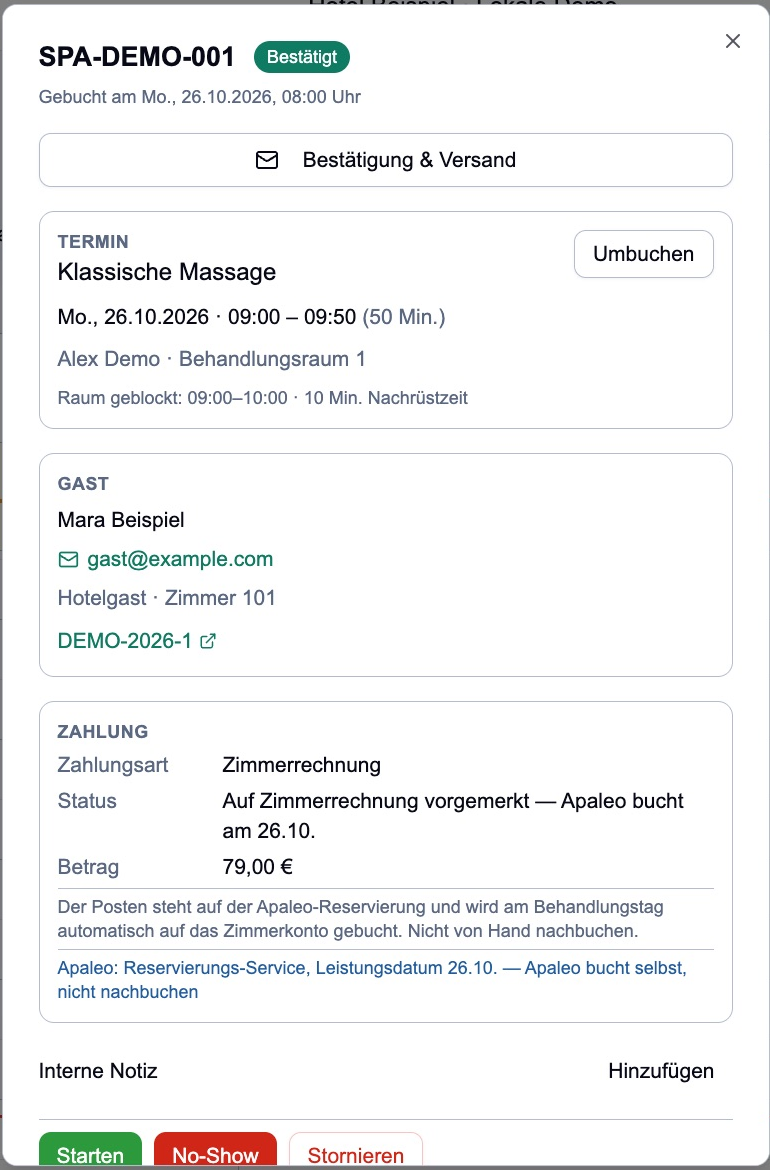
The images show the previous interface version. Currently open „Kassieren“ in booking; Discounts are possible as an amount or percent.
What are you looking for in the spa?
One word is enough – content in other chapters and steps can also be found.
Enter at least two characters.
OVERVIEW
What you can do with the spa tool.
Treatments, day guests and team in one calendar, and with every booking you can see whether it has been paid for. The features you see depend on your hotel's activation and your role.
What's coming up today?
Calendar & overview
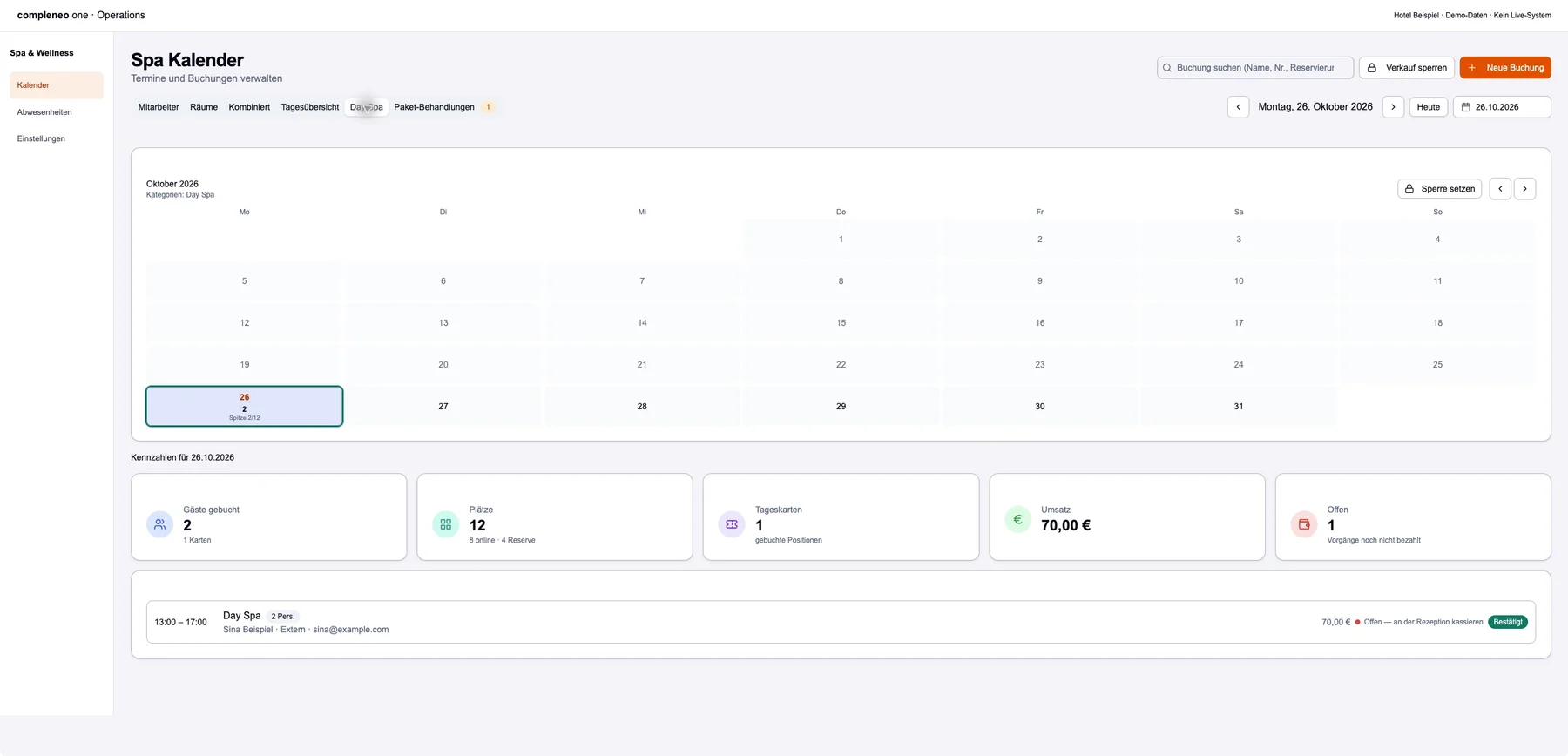
Who is being treated, when, which room is free: you can see the entire spa day at a glance.
Employees and roomsYou can see who is being treated when and which rooms are occupied, individually or together under „Kombiniert“.
Daily overviewAll appointments of the day as a list with payment status. Confirm, start and complete can be done right there.
Search bookingsEnter your name, booking number, reservation or email and find the booking immediately, even without a date and even after a cancellation.
Status at a glanceThe color shows where the treatment is. The small dot shows whether it has been paid.
Layers of E2NIf your hotel uses E2N, you will see the planned shifts right next to the appointments.
Spa & Wellness → Calendar
What does the guest want to book?
Book treatments
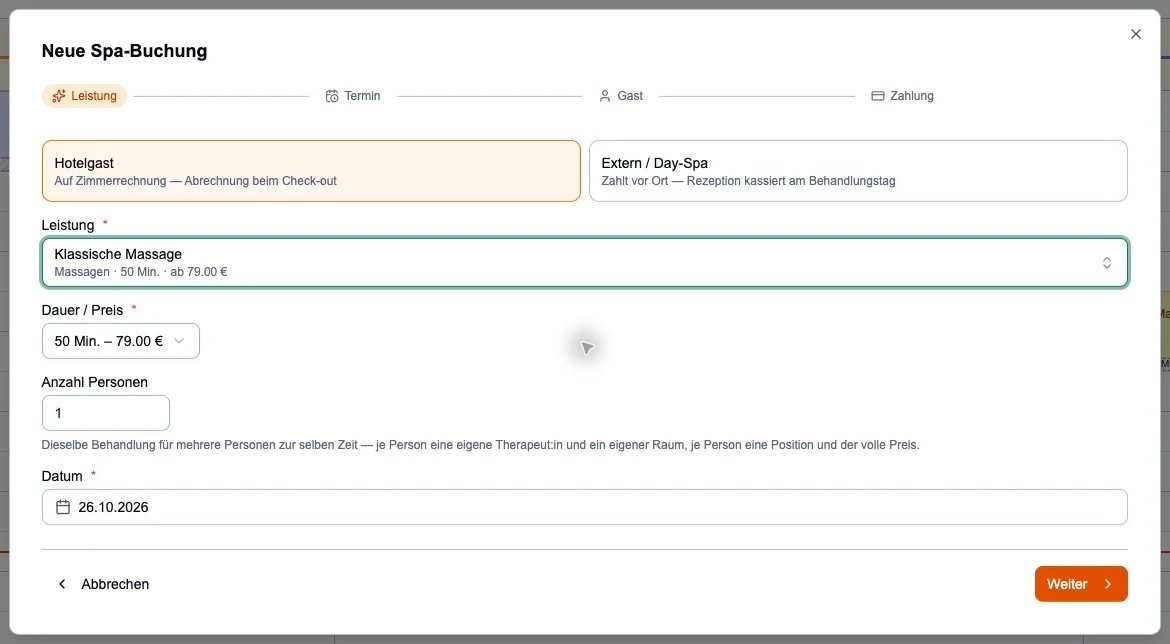
You book a treatment in just a few steps and the system itself suggests suitable available appointments.
Hotel guests and external guestsFor hotel guests, load the data from the reservation and the treatment will be added to the room bill. External guests pay on site.
Free datesOne click selects the time, employees and room. If there is nothing free, the assistant will tell you why.
Several peopleCouples and groups book at the same time. For couples treatments, the system schedules two employees in the same room.
Shopping cart and discountSeveral services come into one booking, even at different times. You enter a discount as an amount or percent with a reason.
Online bookingsIf a guest books via the hotel website, the appointment is immediately included in the same calendar.
Calendar → New booking
What changes to the date?
Appointment & cancellation
If a guest postpones or cancels, you take care of everything in the booking, including the message to the guest.
Confirm, start, completeYou can continue the appointment with one click. You can reset an accidental start with „Starten rückgängig“.
RebookNew time, different employees or a different room: in the form or by dragging in the calendar. The guest will receive an email upon request.
Cancel and no-showIf you cancel, enter the fee and inform the guest. If someone doesn't show up, record a no-show.
Confirmation and shippingPrint confirmations, save as PDF or resend. You can see what was sent and when.
Internal notesArrangements for the team are made directly at the time of booking. Guests don't see them.
Calendar → click appointment
Is everything paid for?
Payment & evaluation
With every booking you can see immediately whether and how it has been paid for and how your spa is developing.
Room billTreatments for hotel guests are automatically added to the room bill, on the day of treatment or immediately.
Cash on siteFor external guests, open „Kassieren“ directly in the booking and select terminal, cash payment, bank transfer or payment link.
Paid online or in arrangementAnything that has already been paid for online or included in the arrangement is marked. This way the team knows that there is nothing left to concede.
EvaluationThe „Spa Dashboard“ shows sales, bookings, occupancy, cancellation rate and the most popular services compared to the previous year.
These errors are not immediately noticeable in everyday life. Here's how to avoid them.
An arrangement treatment will be charged additionally
What happens
Anyone who rebooks an included treatment or chooses „Trotzdem auf Zimmer berechnen“ will charge the guest a second time.
This is the right way
Schedule included treatments via „Paket-Behandlungen“. If the assistant asks, select „Als Paket-Behandlung terminieren (0 €)“. Instructions "Schedule arrangement“ →
A treatment booked by hand on the room bill
What happens
The system books the treatment itself into the room. A second manual booking will charge the guest twice.
This is the right way
Read the payment status in the booking details beforehand. If it says „vorgemerkt“ or „Zimmerrechnung“, don't post anything later. Instructions "Book treatment“ →
The folio in Apaleo created by hand
What happens
An additional manually created folio can record the treatment twice; the payment remains unattached to the spa booking.
This is the right way
Select „Kassieren“ in the booking details. The dialog creates the associated folio itself if necessary. Instructions "Cash on site“ →
Treating a sent payment link as a payment
What happens
Sending a payment link or collecting a partial payment does not settle the outstanding balance. Without checking, money may remain unpaid.
This is the right way
Collect payment through „Kassieren“ and check its status. Use „Als bezahlt markieren“ under „Bereits außerhalb des Hubs kassiert?“ only for a booking fully paid there. Instructions "Cash on site“ →
No fee entered when canceling
What happens
The „Stornogebühr (EUR)“ field is set to 0. Without an entry, the system will refund the full amount.
In the Operations workspace under „Spa & Wellness“ → „Kalender“. First choose the right hotel above. The evaluation is in the Analytics work area. If a menu item is missing, have access and activation checked.
Why are there no free times offered?+
The assistant gives the reason, for example a full daily limit or a ban. If a reason is missing, check: Is someone qualified for the service and working that day? Is there a suitable room available? Is the spa open?
Can I book despite the full daily limit?+
Yes, up to a fixed upper limit. „Als Ausnahme buchen“ then appears after „Buchung erstellen“. If the upper limit is reached, no further booking is possible.
Why does the reception see different times than the guest online?+
Fewer places may be available online, a lead time in days may apply, or online sales may be blocked. Compare the same service, guest type and number of people.
Does the guest automatically receive an email?+
After booking, yes, as soon as an email address is entered. When rebooking and canceling, you decide in the form. If you drag an appointment to a new time in the calendar, the email will go out without query.
How do I resend a confirmation?+
Open „Bestätigung & Versand“ in the booking details. There you can send the current status by email or print it out. The shipping history shows whether an email was delivered.
Where can I find canceled appointments?+
Canceled appointments are no longer in the calendar, the time is immediately available again. You can still find the booking with the name, booking number or reservation using the booking search.
What happens to the money if you cancel?+
Paid online with card: The amount minus the fee will be refunded. On the room bill or on site: only the fee remains. Included in the package: Nothing will be charged or refunded.
Can I only cancel one of several treatments?+
Yes, for bookings with multiple items via „Nur diese Position“. The guest does not receive any email. If you paid by card, you can only cancel the entire booking.
Cancellation or no-show?+
Cancellation if the guest cancels beforehand. „No-Show“ if the guest does not show up for a confirmed appointment: the full amount remains. An accidental no-show can be reversed with „Wieder öffnen“.
The guest leaves earlier. How does the treatment get added to the room bill?+
Select „Jetzt auf Zimmer buchen“ in the booking details. The treatment will then be booked immediately instead of on the day of treatment.
Can I change a discount later?+
No. The discount is set for a reason when booking and cannot be changed afterwards at the spa. Therefore, check it before „Buchung erstellen“.
An included treatment is missing under „Paket-Behandlungen“. What to do?+
With „Behandlung nachtragen“ you choose your reservation and service yourself. The treatment is scheduled at €0 because it is already calculated in the arrangement. If a treatment is listed there „ohne Zuordnung“, the spa management must first assign it to a service.
What happens to booked appointments if you are absent or blocked?+
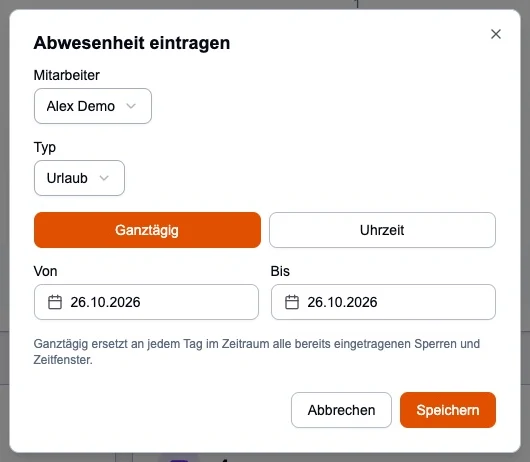
They remain. After saving, the app shows which guests are affected. Reschedule these appointments or talk to the guests. Nothing is canceled automatically.
How do I remove a sales ban?+
Current bans are indicated above the calendar. Select „Aufheben“ there and confirm. Sales are open again immediately.
Why can't I change an employee's name or email?+
The person is associated with E2N. Name, email and telephone then come from E2N and are maintained there.
FACILITY
Set up a spa. In the correct order.
Eight chapters for spa management, in the order you set up. Each chapter ends with a short check.
Spa & Wellness → Settings
Spa & opening times
The settings determine when the spa is open and how bookings can be made.
Here's how to set it up
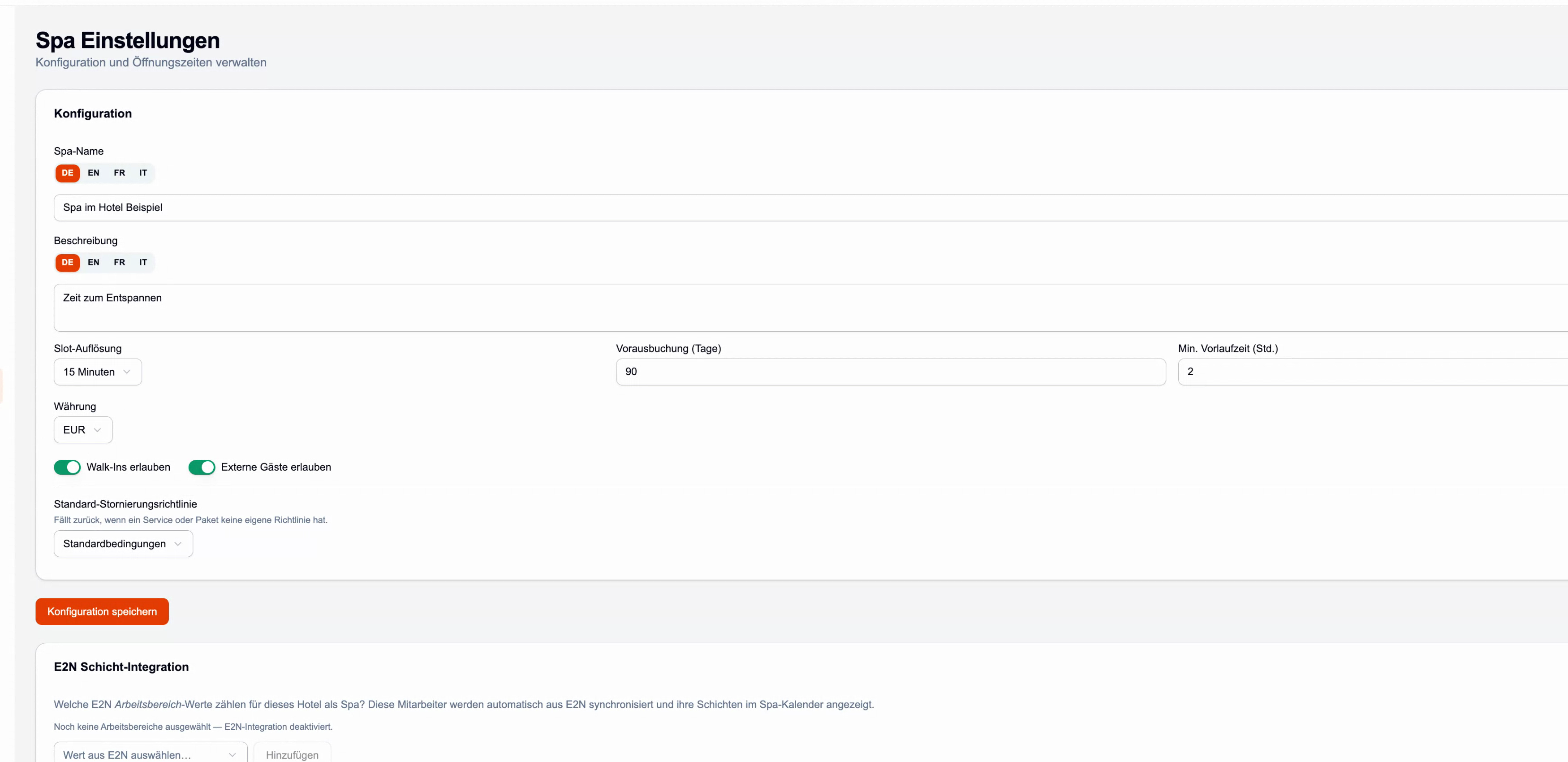
Choose the right hotel above. Under „Einstellungen“ enter the spa name, description and time frame („Slot-Auflösung“).
Set „Buchungen im Hub erlauben“ for the reception and „Online-Buchungen erlauben“ for the website. Then select „Konfiguration speichern“.
Set „Offen“ or „Geschl.“ with times for each day of the week. The opening times have their own button „Öffnungszeiten speichern“.
If your hotel uses E2N, select the spa team's work areas under „E2N Schicht-Integration“. The selection is saved immediately.
… Configuration and opening times after reloading are correct, even on weekends.
1 / 8
Spa & Wellness → Categories · Rooms
Categories & rooms
Categories organize the offer. Rooms determine where a performance takes place and how many can be accommodated at the same time.
Here's how to set it up
Enter the code, name and order under „Kategorien“ → „Neue Kategorie“. Reconcile the revenue account („Apaleo Sub-Konto“) with accounting.
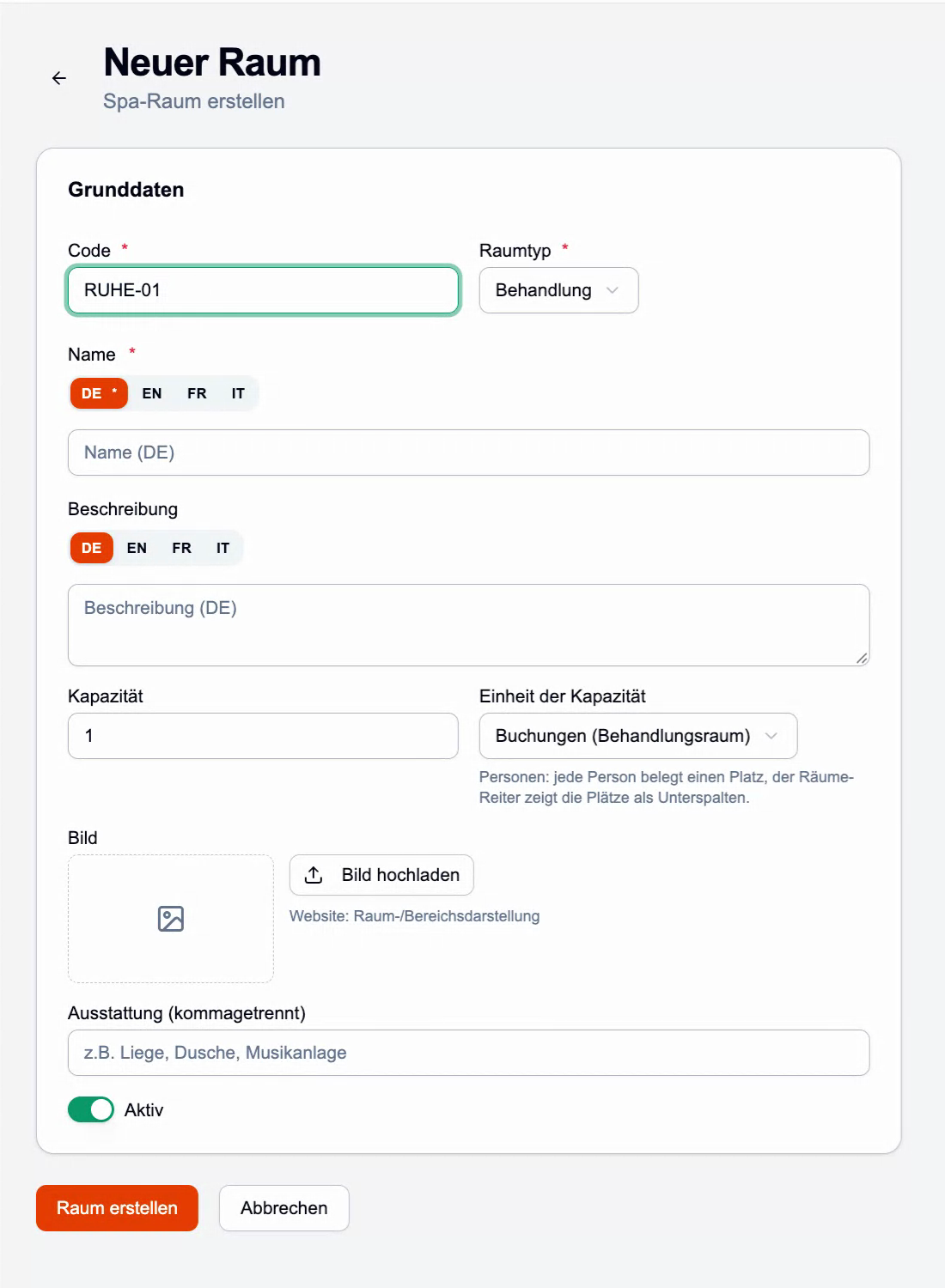
Enter code, name, room type and capacity under „Räume“ → „Neuer Raum“.
Choose the unit: „Buchungen“ for a treatment room, „Personen“ for an area such as the sauna. With „Personen“ you can determine how many places can be booked online.
Set categories that are no longer needed to inactive instead of deleting them.
… the terms and conditions of a service are displayed correctly on the website.
3 / 8
Spa & Wellness → Services → New service
Treatments & variants
A service combines duration and price with space, staff and time buffers.
Here's how to set it up
Open „Neuer Service“. In the „Basis“ tab, select code, name, category and the „Art der Leistung“: „Behandlung“ or „Day Spa / Tageskarte“.
Determine how many employees („Therapeuten je Position“) and people the service requires. Enter the cleaning or rest time afterwards as „Puffer nachher (Min.)“.
For services without a treating person, set „Vorbereitung durch Personal (Min.)“ if necessary and assign qualified employees. The post-treatment buffer occupies the room, not the person preparing it.
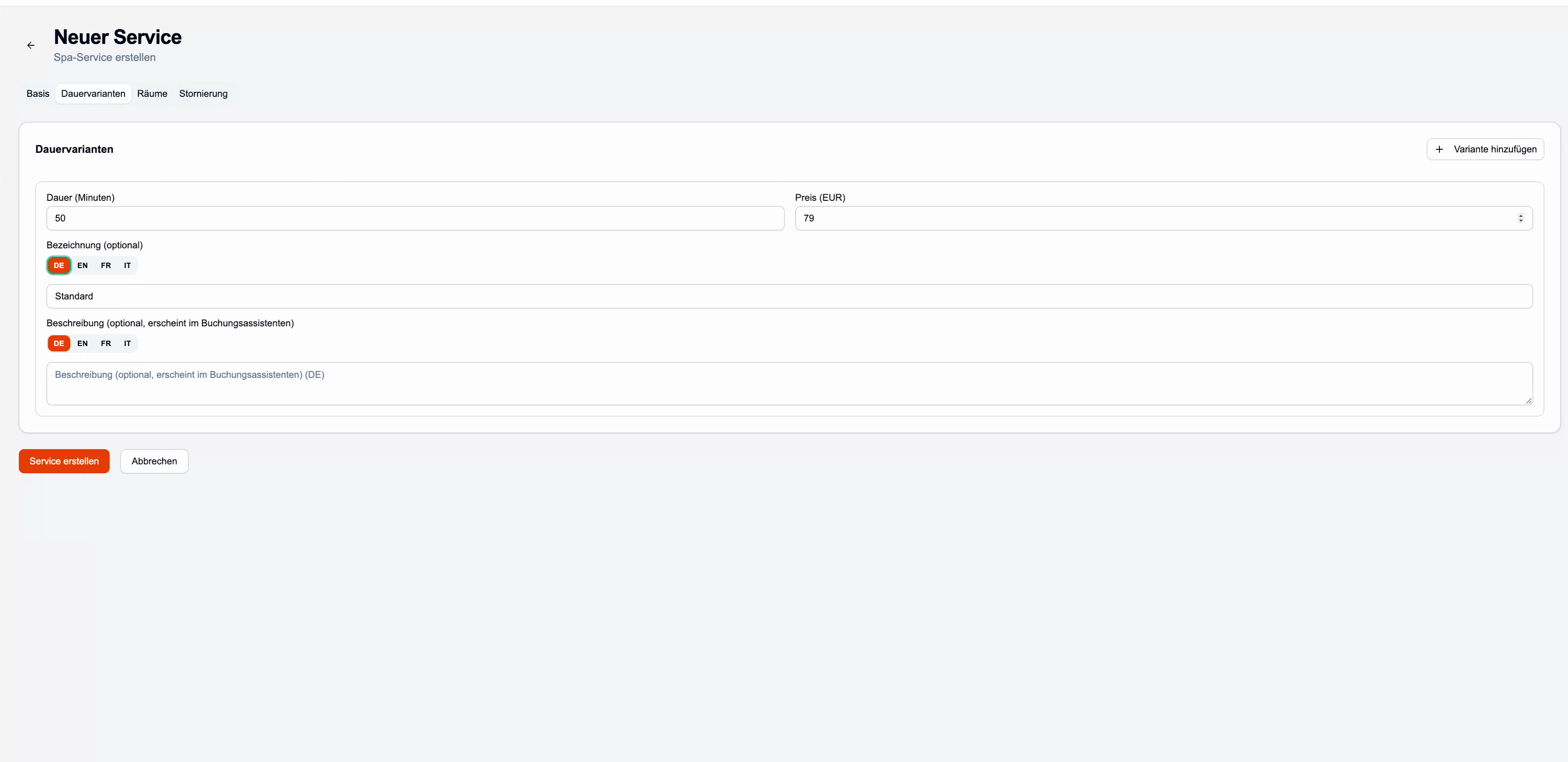
Under „Dauervarianten“, create at least one variant with duration in minutes and price in euros, for example 50 minutes for 79 euros.
Select the appropriate rooms in the „Räume“ tab. Assign your own policy under „Stornierung“ if necessary.
Save and assign the new service to employees in the next chapter.
Original interface with demo data · Enlarge imageRest time in field „Puffer nachher“
„Basis“ shows the time after the treatment, in the example 10 minutes. It appears in the calendar as a hatched post-treatment buffer.
… the service appears in the booking assistant with the correct duration and the correct price.
4 / 8
Spa & Wellness → Staff
Employees & working hours
An appointment will only be offered if a qualified person is working at the time.
Here's how to set it up
Under „Personal“ select „Neuer Mitarbeiter“ and enter your name and contact details. If your hotel is connected to E2N, this information comes from E2N.
In the „Services“ tab, select all the services that the person is allowed to carry out. A new service must be assigned here each time.
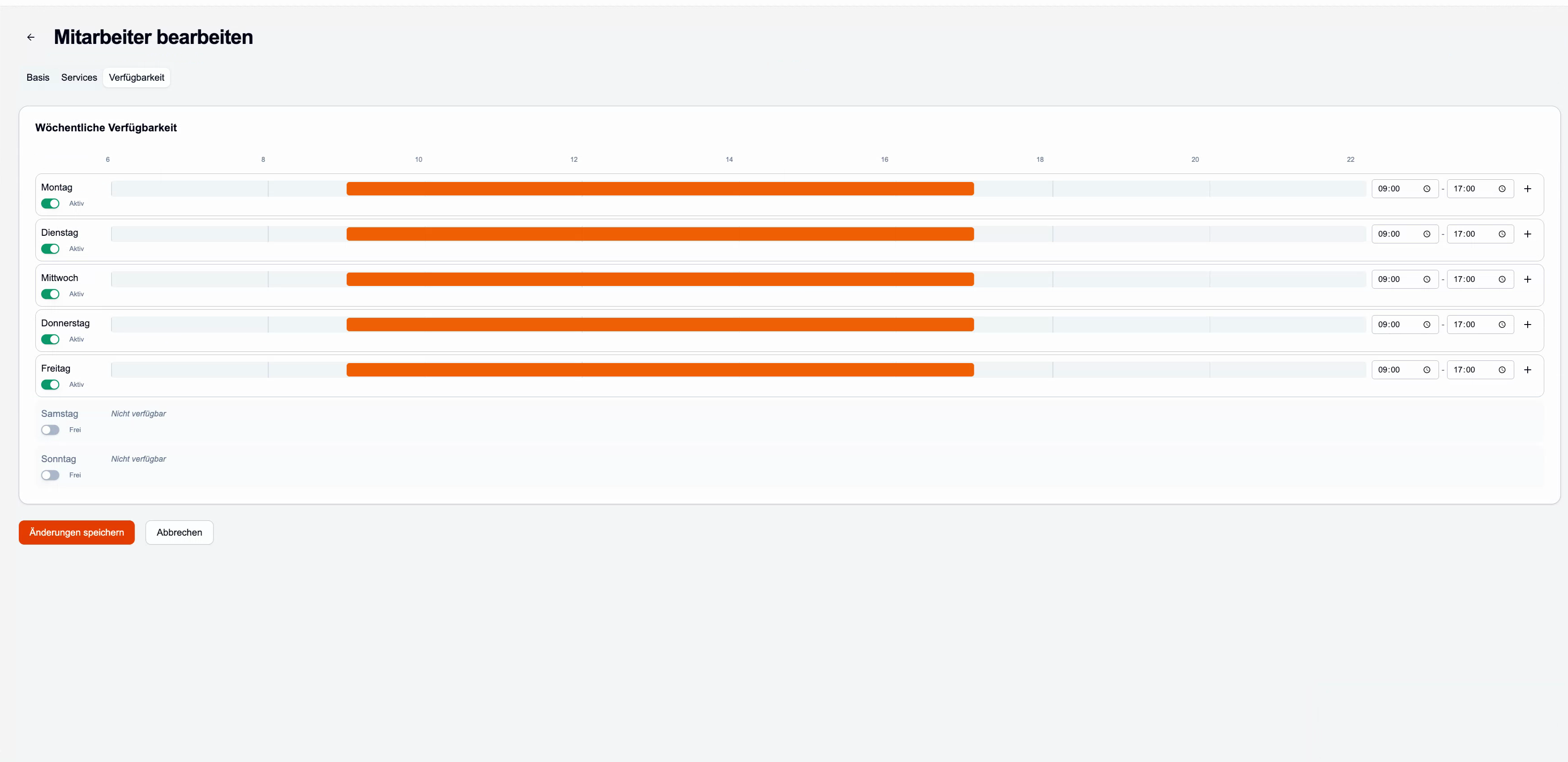
Save and reopen the person. Enter the working times for each day of the week under „Verfügbarkeit“, for split shifts with „Geteilte Schicht hinzufügen“.
Save and read the message. Personal data and availability are stored separately.
… the person is offered in the booking assistant for their services during their working hours.
5 / 8
Services → Base · Rooms
Day Spa & Sales Rules
Sales rules determine how much can be sold online and at the reception.
Here's how to set it up
For a day ticket, select the „Art der Leistung“ „Day Spa / Tageskarte“ and assign a room with the unit „Personen“.
If necessary, set „Max. Buchungen je Tag“ or „Max. Personen je Tag“ in the service under „Basis“. An empty field means: no limit.
If the reception should be allowed to book beyond the limit, enter „… davon Ausnahmen bis (Rezeption)“ as the upper limit.
With „Online-Vorlauf (Tage)“ prevent guests from booking online at too short notice. For example, the value 2 blocks online today and tomorrow.
Done when...
… The same service is only offered differently in the hub and online where you have set it that way.
6 / 8
Spa & Wellness → Packages · Products · Settings
Packages, products & arrangements
Spa packages bundle services for one price. The allocation of the arrangements ensures that the treatments included can be scheduled.
Here's how to set it up
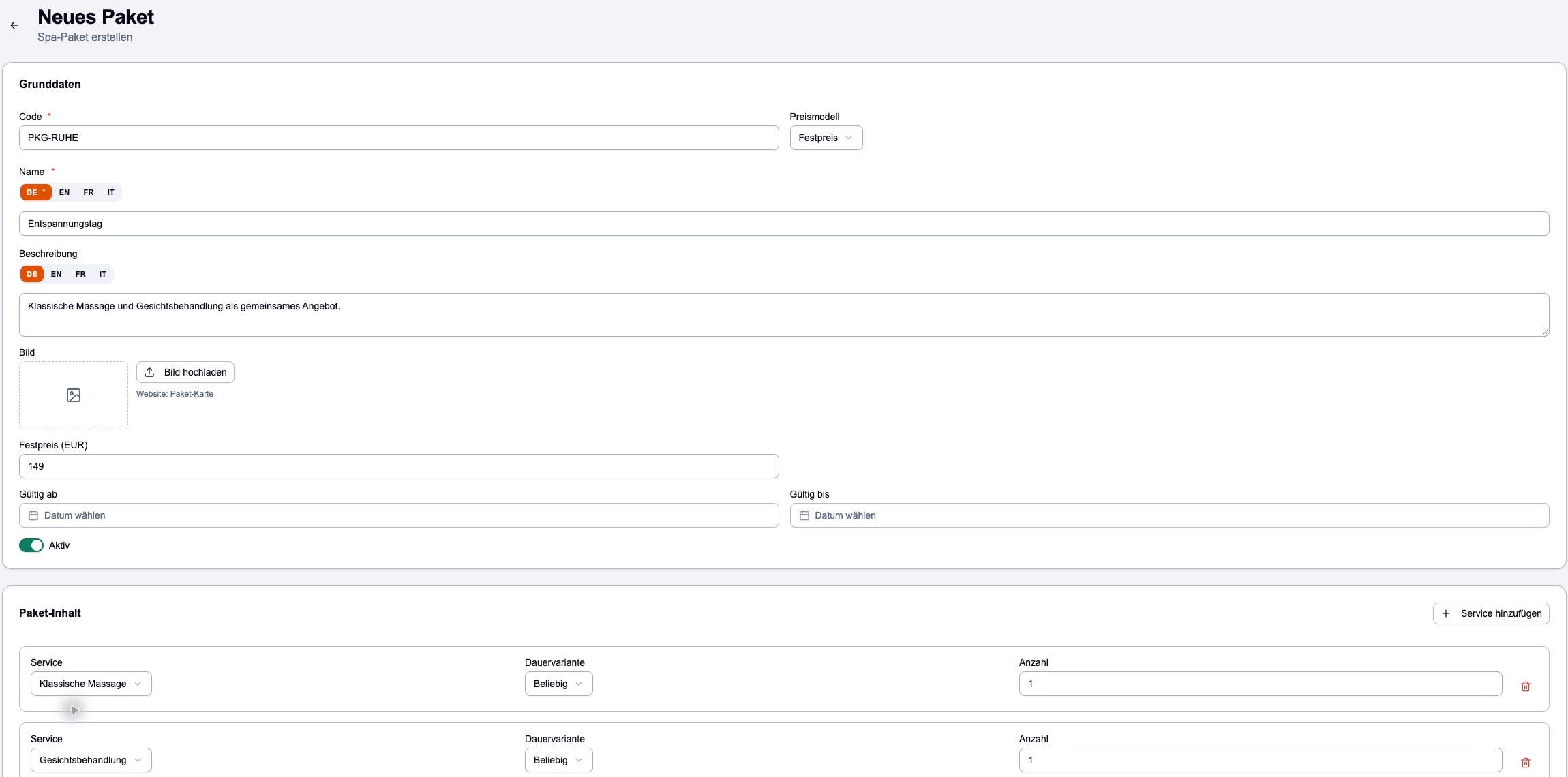
Select „Neues Paket“ under „Pakete“. Under „Paket-Inhalt“ with „Service hinzufügen“ define services, duration variant and number.
As „Preismodell“ choose a fixed price or a discount in percent. Set „Gültig ab“ and „Gültig bis“ if necessary.
Create an item with name, category, price and image under „Produkte“. Products appear on the website.
Under „Einstellungen“, assign each arrangement service from Apaleo to a spa service in „Paket-Behandlungen → Spa-Leistung“. Pure extras like bathrobes „Als Amenität ausblenden“.
… the team finds the expected dates and blocked times are not offered.
8 / 8
Checklist before release
Correct hotel and editing rights confirmed
Configuration and all opening days saved
Categories, rooms and capacities fit
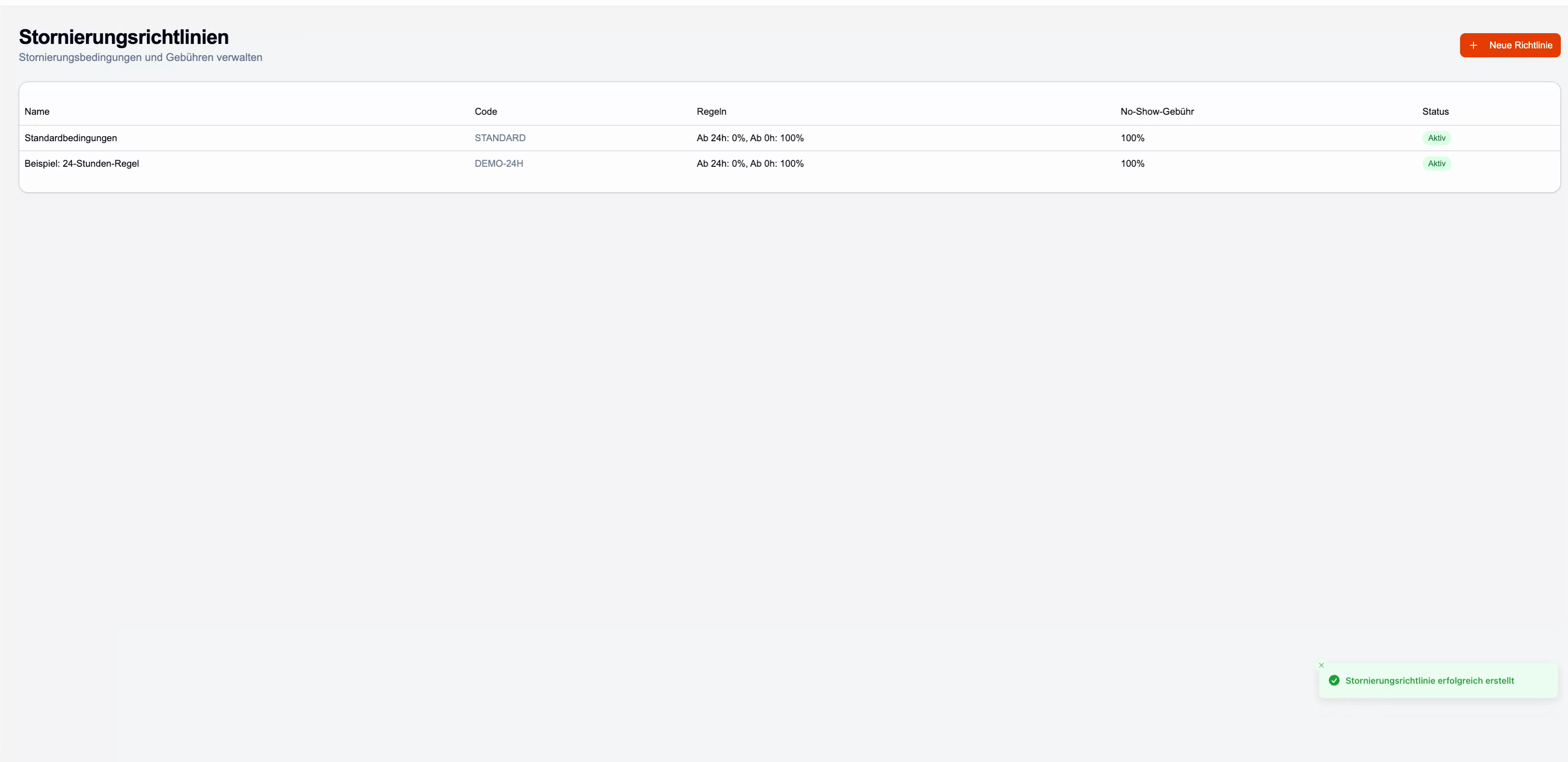
Cancellation conditions created and standard selected
Services complete with duration, price and rooms
Employees maintained with benefits and working hours
Daily limits and online share coordinated
Arrangement services assigned
Bookability tested in the hub and online
For the inspection, go through it together with the spa management and reception.
INSTALLATION IN PRACTICE · 1:53 MIN.
Connect space, treatment and team.
A real, shortened screen recording: create a room, enter cancellation rules, configure a new massage and assign employees. The chapters lead directly to the desired location.