
Log in and log out
Start your working day with your account and sign out securely at the end of your shift.
Before you start
- Your personal account is already set up.
- You have your password and the authenticator app ready on your phone.
BRIEFLY EXPLAINED
Shared computer?
Use your own account. Leave „Angemeldet bleiben“ turned off at a shared workstation and log off after your shift.
Step by step
- 01
Open your login page
Open the link to the workspace your company gave you or your saved bookmark. Use the button above to sign in to Operations. If you have another workspace, use its link.
- 02
Enter email and password
Enter your account email address and your personal password. Click „Weiter“.
You can use the eye symbol to briefly check an entry. Make sure no one is reading.
compleneo oneScreen detail · 02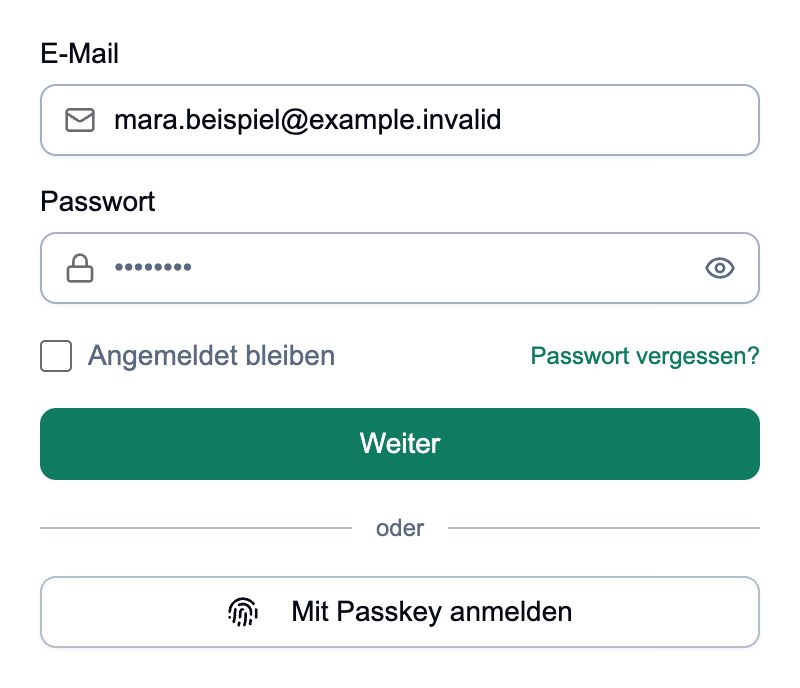
Use your personal account. „Angemeldet bleiben“ remains switched off on the shared computer. - 03
Confirm the code from your app
Open the Authenticator app on your phone. Find the entry for compleneo one and read the current six-digit code. Enter it at „Code aus der Authenticator-App“. The check starts automatically after the last digit; if necessary, click „Anmelden“.
If your existing login specifically requires an SMS or email code, follow this on-screen prompt instead.
compleneo oneScreen detail · 03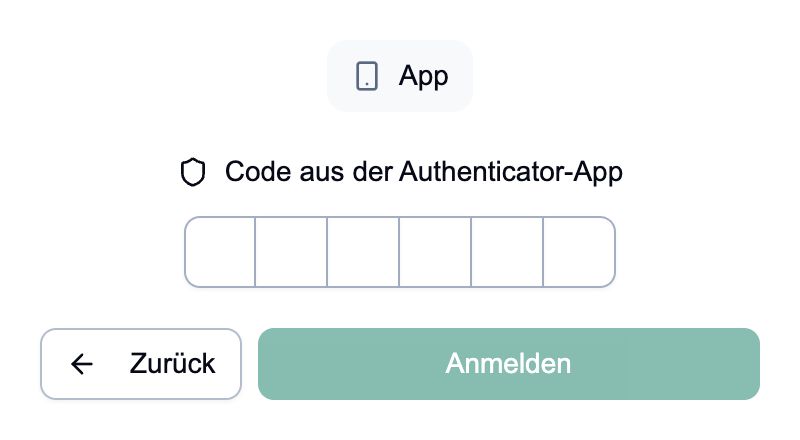
Use the current code from your own app listing. - 04
Check the hotel before working
After logging in, the workspace opens. Check the hotel name above before editing guest data or creating entries. The next instructions explain how to change hotels and work areas.
- 05
Sign out after shift
With the sidebar collapsed, first open the menu icon in the top left. Then click on your name or profile picture at the bottom of the sidebar. In the opened menu, select „Abmelden“. Wait for the login page to appear. Closing a tab alone is not a logout.
compleneo oneScreen detail · 05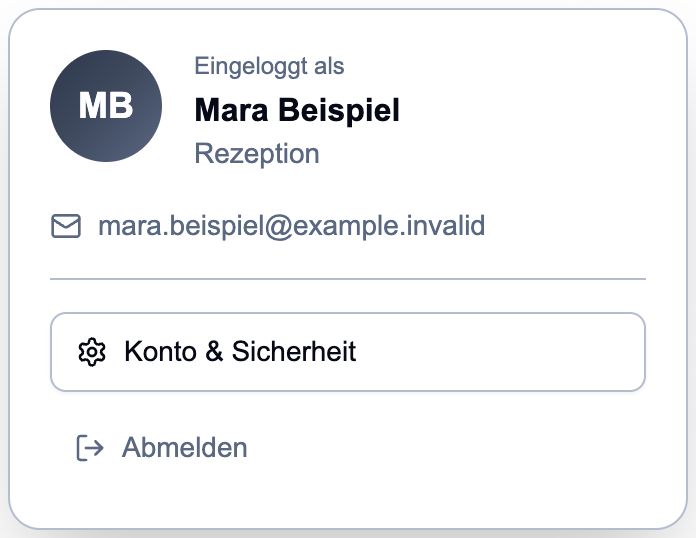
Click on „Abmelden“ in the profile menu. Name and email in the image are sample data.
Done
At the beginning you will see your workspace. After logging out, you will see the login page again.
Frequently asked questions
My password is not accepted.
Check email address, capitalization, and caps lock. If you no longer know the password, use „Passwort vergessen?“ instead of creating a new account.
The app code doesn't work.
Check that you have opened the correct entry in the Authenticator app. Wait for the next code and enter it directly. If errors occur repeatedly, the phone should automatically set the date and time. If the app entry is completely missing, use the instructions for password or loss of mobile phone.
Registration offers a passkey.
A passkey is a login that has already been set up, for example with a fingerprint or device PIN. Only use it if you have set it up for your account. Otherwise, you'll stick with email, password and app code. Availability depends on device and browser.
After a pause, the login appears again.
Your session may expire. Log in again. Then check the hotel and whether the last edited details are saved before continuing to work.
Status: Oct 23, 2026