
Select hotel and work area
First the right house, then the right task: This is how you find your way around after signing in.
Before you start
- You are logged in.
- Your company has assigned you the hotels and work areas you need.
BRIEFLY EXPLAINED
Hotel and workspace are two different things.
The hotel determines which house you work for. The work area bundles your tasks, for example operations for hotel operations or HR for personnel.
Step by step
- 01
Check the hotel name above
The selected hotel is shown in the top bar. Check the name before each edit - especially if you work for several companies. If you are only assigned one hotel, there can be a fixed name without a collapsible selection.
- 02
If necessary, choose another hotel
Click on the hotel name and select the desired house from the list. Wait for the view to refresh and check the name again.
„Alle Hotels“ is a comprehensive selection and is not available in every area. A single house is used in Operations. Several houses can be selected in the HR area.
compleneo oneScreen detail · 02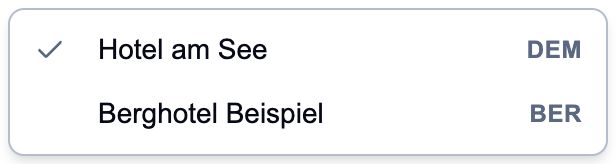
Example from Operations: The list only contains the hotels available to you. The names here are demo data. - 03
Open the workspace
Save ongoing changes before switching. At the edge of the screen you will find a switch with the name of the current area, for example „Operations Hub“. It is usually at the bottom right; the position can be adjusted. Click on it to see the available areas.
„Hub“ here means work area. Choose the area you need for your task.
compleneo oneScreen detail · 03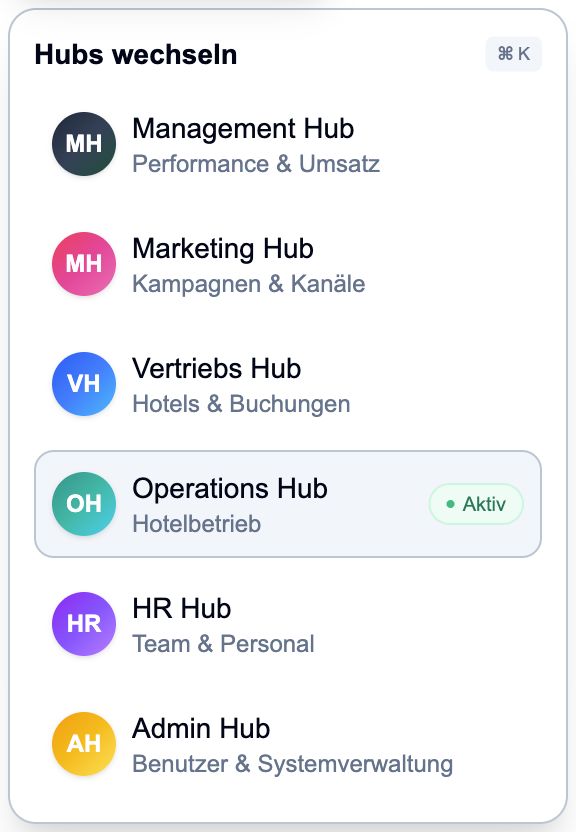
The overview shows possible work areas. Only shared areas appear in your account. - 04
Briefly orientate yourself in the new area
Wait for the new workspace to open. Check the hotel again there. The menu items on the left belong to the current workspace; select the required task from there.
Done
You will see the appropriate work area and the correct hotel or desired hotel selection at the top.
Frequently asked questions
My hotel or work area is missing.
The selection depends on your permissions and the activated areas. Tell your responsible person the hotel you need and the specific task. Do not create a second account.
It says „Keine Hotels“ or „Hotels nicht ladbar“.
„Hotels nicht ladbar“ allows you to reload the selection. If the message persists or appears „Keine Hotels“, contact your responsible person. Don't continue working until the right house has been clearly selected.
The selection shows a test hotel.
A test hotel is explicitly marked as „Test“ and is separate from the other hotels. Use your regular hotel for real guests and operational operations.
I switch between multiple open tabs.
Check the hotel name in each tab before changing anything. An already open tab doesn't have to immediately show the same selection as another workspace.
Status: Oct 23, 2026