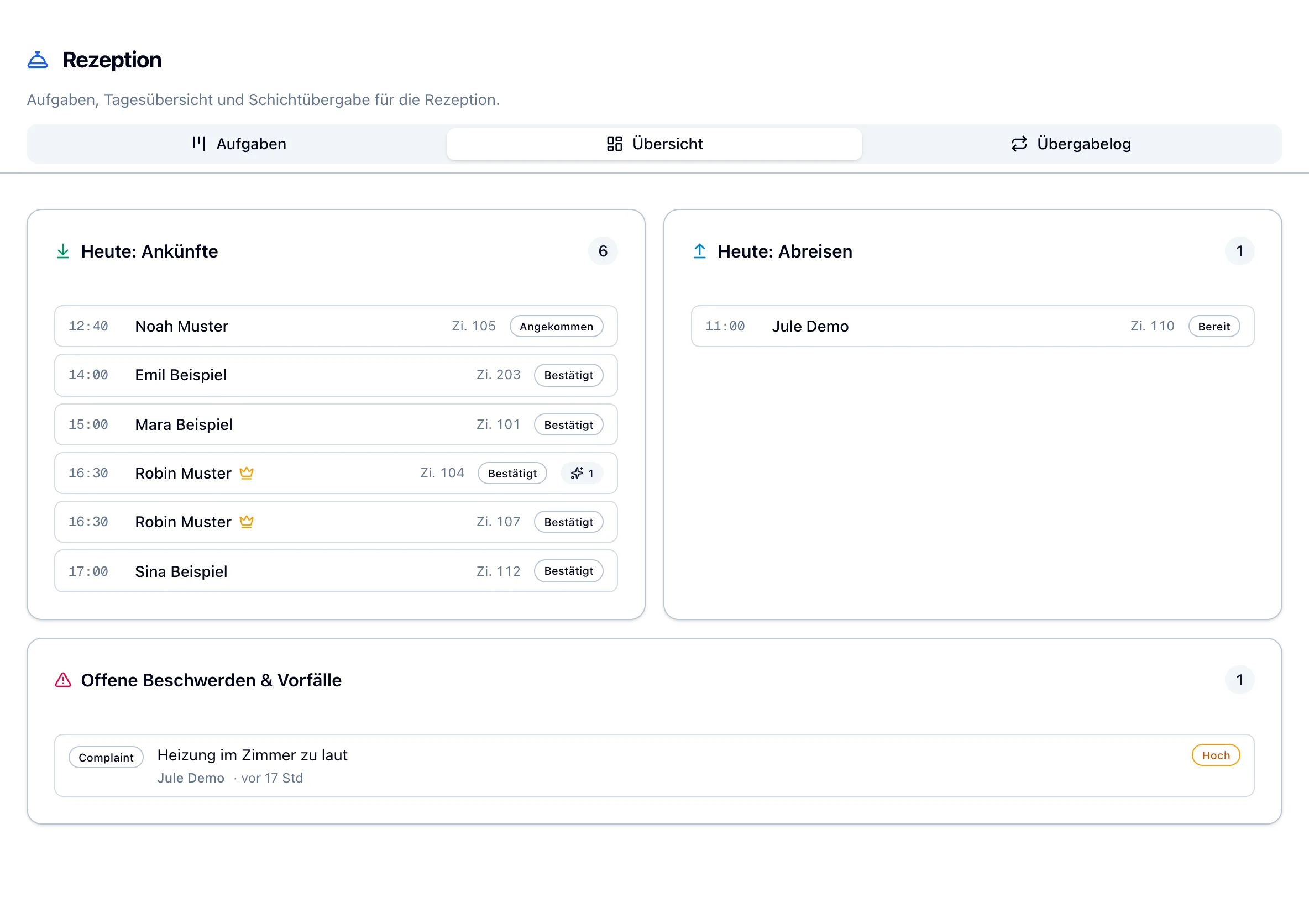
The images show the previous interface version. The instructions use the current labels: „An Tablet senden“ in the line and „Hier am Rechner öffnen“ in the menu ⋯.
What are you looking for about Arrival & stay?
One word is enough – content in other chapters and steps can also be found.
Enter at least two characters.
OVERVIEW
What you need to do when you arrive and stay.
All arrivals of the day in a list, check-in at reception or on the tablet, and you can see for each guest whether the registration form is present. The features you see depend on your hotel's activation and your role.
Who is arriving today?
Arrivals & guests in the house
You can see at a glance who is arriving today, who is already in the house and what still needs to be prepared.
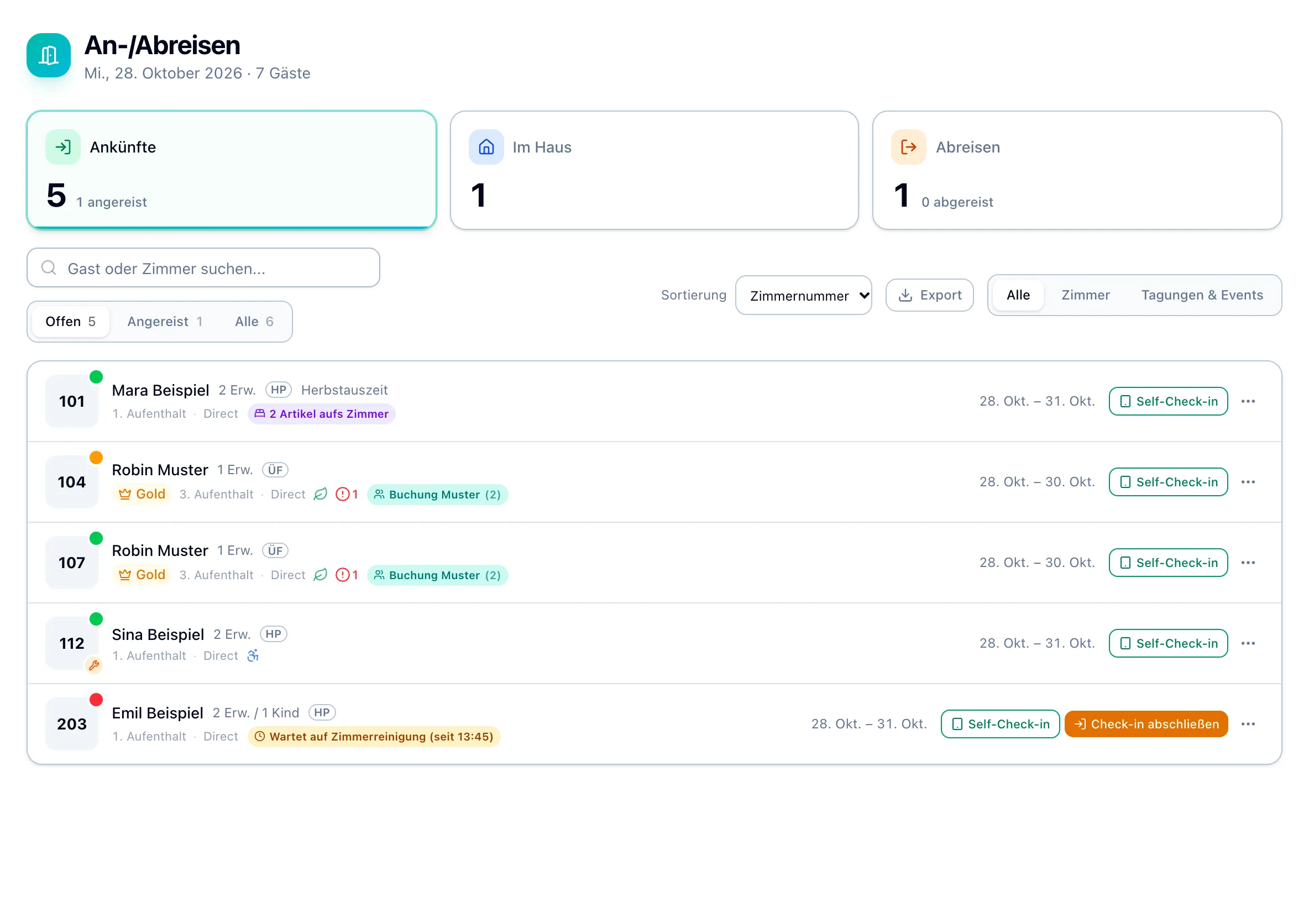
Three riders for the day„Ankünfte“, „Im Haus“ and „Abreisen“ show who is coming, who is there and who is leaving. Anyone who is checked in will automatically switch to „Im Haus“.
Room ready?A colored dot on the room shows „Sauber“, „Gereinigt – Inspektion ausstehend“ or „Schmutzig“. A wrench shows maintenance on the room.
Know guestsClassification, how many stays, dietary requirements, accessibility and open notes are directly in the line.
Prepare for the roomFood like „HP“, the booked package and instructions like „2 Artikel aufs Zimmer“ show what needs to be ready before arrival.
Print arrival list„Export“ prints exactly the lines that are currently in the list, with notes and open tasks.
Guest operations → Arrivals/departures → Arrivals · In the house
How do I check in the guest?
Check in at reception
You check in each guest in the same order and have a signed registration form at the end.
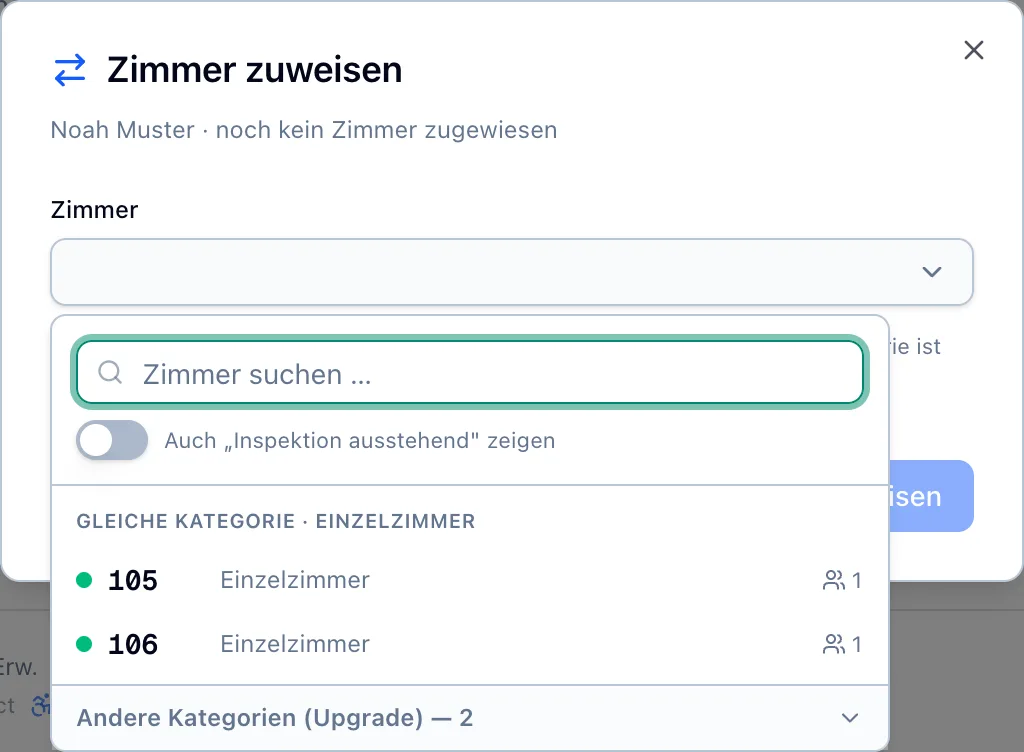
1. Assign roomsIf the guest does not yet have a room, assign it via ⋯ „Zimmer zuweisen“, from the booked category or as an upgrade.
2. Use existing signatureFor „Pre-Check-in ✓“, select „Einchecken“. After an interrupted check-in, the button is called „Check-in abschließen“.
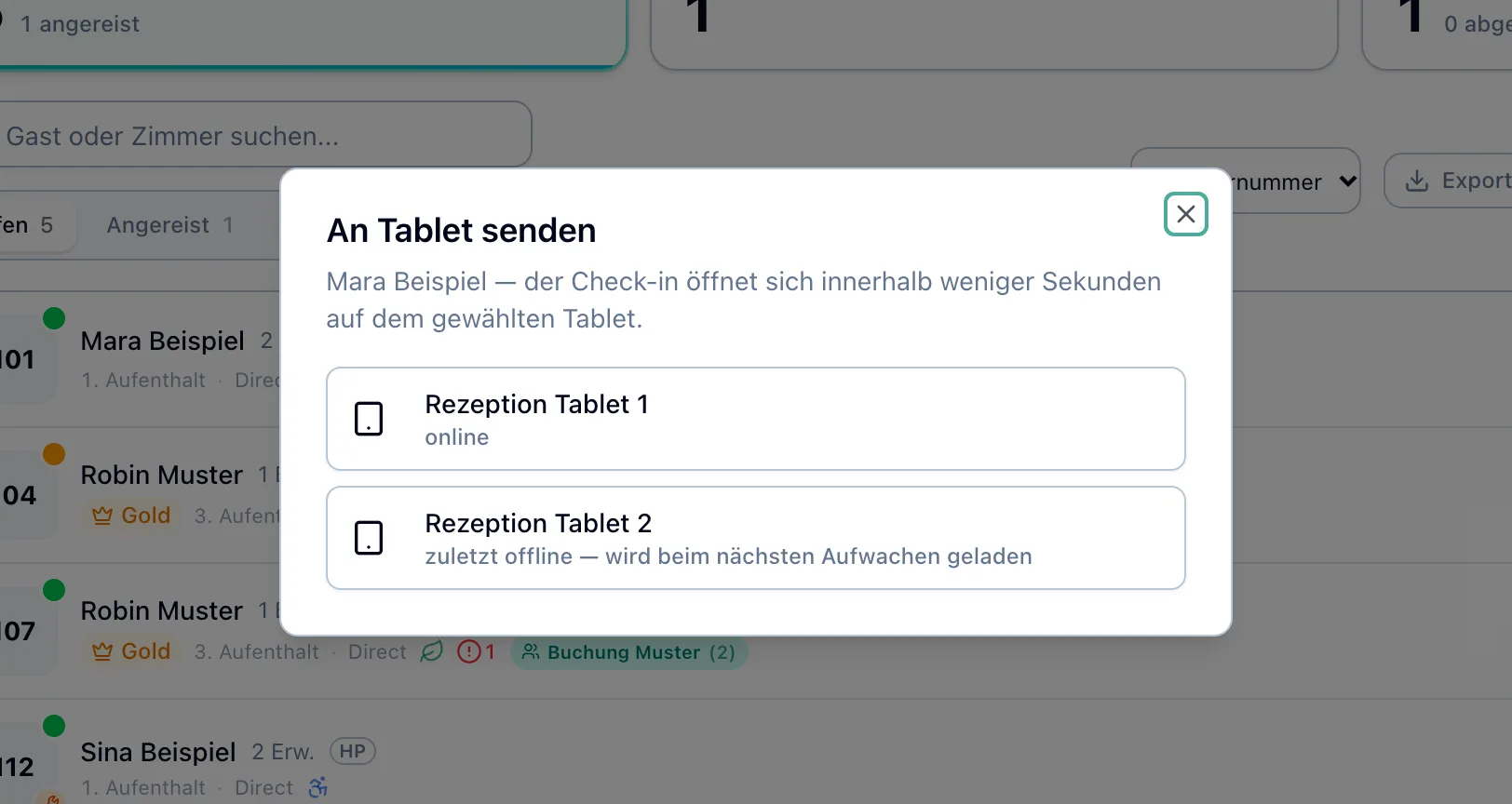
3. Send to tabletOtherwise, send the reservation with „An Tablet senden“ in the line to the reception tablet, a group via their group chip. There the guest signs his registration form.
4. Open here on the computerIf no tablet is available, ⋯ „Hier am Rechner öffnen“ opens the check-in on your device. You stay with the guest until he has signed.
5. Quick check-inOnly in an emergency: Select „Schnell-Check-in“ or „Gruppe einchecken“ and confirm the query about the missing registration form. You can get the signature on the same day.
Guest operations → Arrivals/Departures → Arrivals → Menu ⋯ at the end of the line
What does the guest experience on the tablet?
Check-in at the reception tablet
Your guests will check themselves in in just a few minutes and you will then have a signed registration form.
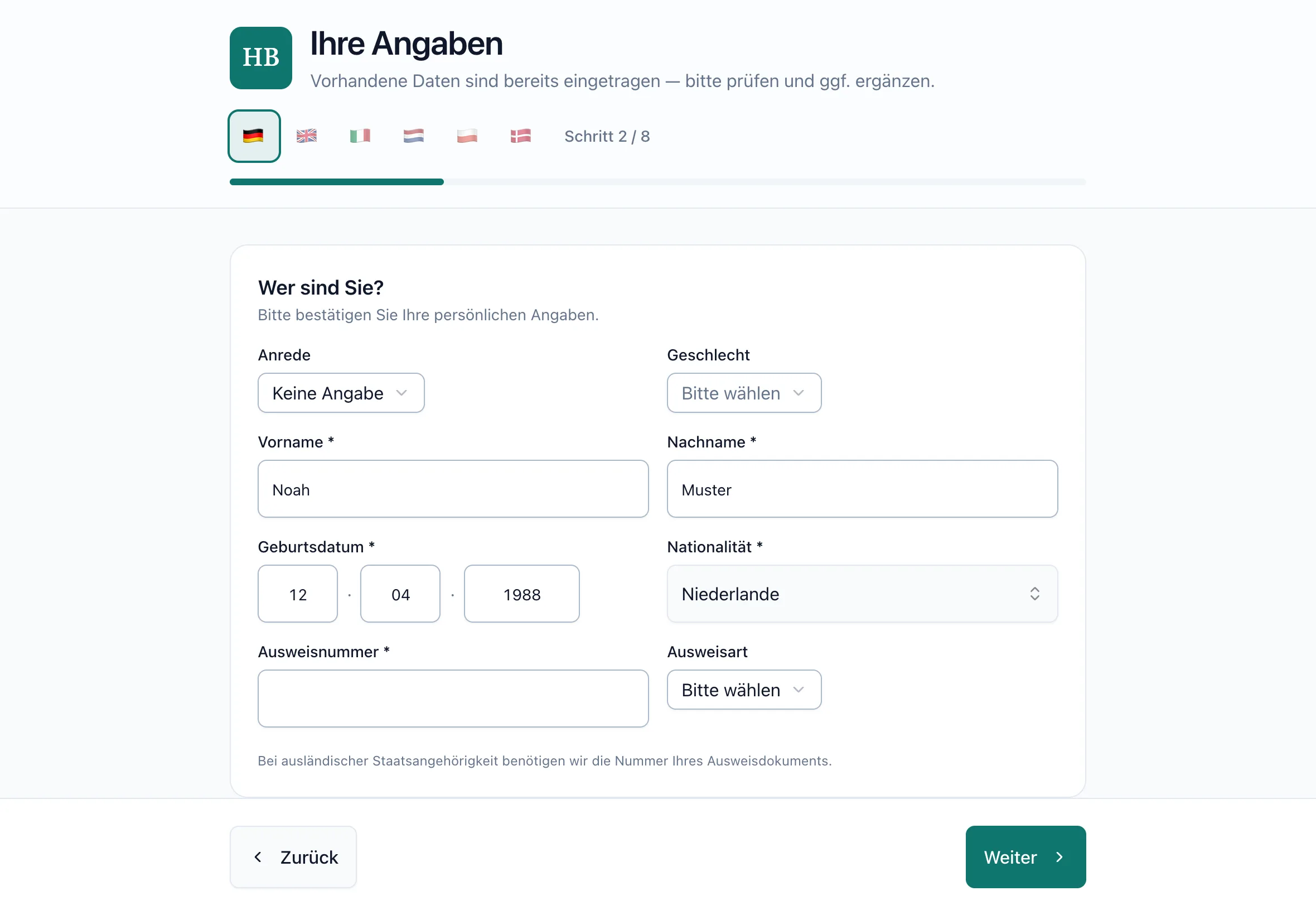
Find your own bookingThe guest types in their last name and, if necessary, their first name. The tablet never shows a list of names.
Six languagesGerman, English, Italiano, Nederlands, Polski and Dansk. After each guest the tablet starts again in German.
Information already filled outKnown data from the guest profile and booking has already been entered. The guest checks it and adds fellow travelers and, if they are of foreign nationality, the ID number.
Signature on the tabletFinally, the guest signs the registration form on the screen. If a room is assigned and not „Schmutzig“, he is then checked in.
Data remains protectedAfter two minutes without contact, the tablet asks „Sind Sie noch da?“. Without an answer, it resets itself and deletes all entries.
Reception tablet → Welcome → Start check-in
Is every guest registered?
Registration forms & tourist tax
You can see which reports have been received by the spa administration and where information is still missing.
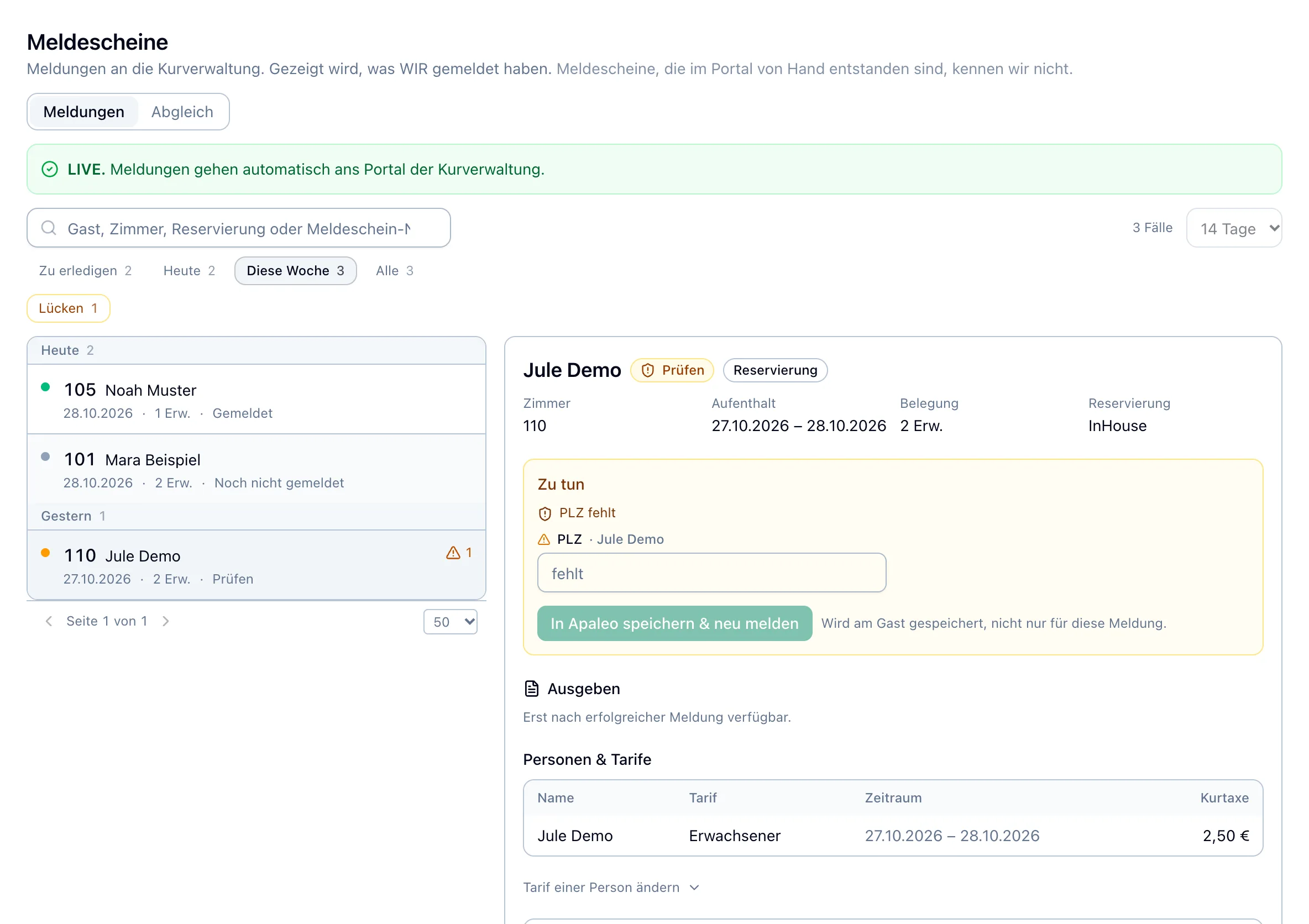
Registration form and notificationThe guest signs the registration form. After check-in, the system automatically sends the message to the spa administration and updates it if there are any changes.
What is still open„Zu erledigen“ collects the reports that still need work: missing information, errors in transmission and guests checked in without reporting.
Add informationIf a report lacks information about the main guest, add it directly to the case.
MatchingThe tab „Abgleich“ compares each month what was reported to the spa administration and what was charged to the guests.
Guest operations → Registration forms
What's going on at reception today?
Reception
You have arrivals, departures and outstanding complaints on one page and hand over the shift in writing.
Arrivals of the dayTime, guest, room and status of each arrival, as well as open processes. The name opens the guest profile.
Departures of the dayWho is leaving today, with time, room and status like „Bereit“ or „Abgereist“.
Complaints and IncidentsThe five most urgent open complaints and incidents from guest profiles, sorted by priority.
Handover log per shiftEarly, late and night shifts write down what happened, if desired with reference to a guest. Todos can be checked off in the next shift.
Hotel operations → Reception → Overview · Handover log
Notes in the lineWhat the chips in „An-/Abreisen“ mean. The signature chips only appear as long as the guest's arrival date is selected above.+
Signature
Registration form ✓
The guest signed on the tablet or in advance via the hotel's link.
just names
A guest from another room signed for group check-in; There is no address or contact for this room, and no address is reported.
Registration form is missing
Checked in without a signature; „… ohne Meldeschein“ only counts these rooms in the toolbar, rooms with „nur Namen“ do not.
Pre check in ✓
The guest signed via the hotel's link; upon arrival select „Einchecken“.
Check in
Check-in open
The guest signed on the tablet, but the check-in did not go through; „Meldeschein ✓“ is then hidden, „Check-in abschließen“ is sufficient.
Waiting for room cleaning
The room is reported as dirty, the guest is booked and housekeeping sees the room at the top.
Room is now available
Housekeeping reported the room clean; we continue with the order from „Check in at reception“.
IN EVERYDAY LIFE
Step by step.
Nine typical tasks on the real interface, check-ins in the recommended order. Choose a task and go through the steps at your own pace.
Assign rooms
Step 1 of the sequence: Noah Muster is arriving today and still needs a room.
STEP 1 OF 3
Open dialog
In „Ankünfte“ at Noah Muster open the menu ⋯ at the end of the line and select „Zimmer zuweisen“.
The result
The dialog „Zimmer zuweisen“ shows „Noah Muster · noch kein Zimmer zugewiesen“.
They concern registration forms, room bills or guest data. Here's how to avoid them.
Checked in without a signature
What happens
Anyone who confirms „Ohne Meldeschein einchecken“ or checks in directly into Apaleo still does not have a signature. „Meldeschein fehlt“ remains visible during your stay.
The company from „Geschäftsadresse“ receives the entire room bill, including private extras, without asking. If your community exempts business travelers, the system will also remove the tourist tax for all rooms at that check-in.
This is the right way
Before handing over, tell business travelers that with „Geschäftlich“ the company gets everything. Not everyone in a group is traveling on business, the guest selects „Nur mein Zimmer — die anderen checken selbst ein“ on the tablet. Instructions "Check in guest at reception tablet“ →
More people registered on the tablet than booked
What happens
Occupancy and price of the reservation remain as booked, children who register late count as adults. Only the note „Personenzahl weicht ab“ and a notification are visible.
This is the right way
If „Personenzahl weicht ab“ is in the line, clarify the occupancy with the guest. Then change the reservation in the menu ⋯ at the end of the line with „Personenanzahl anpassen“. Instructions "Check in guest at reception tablet“ →
Guest left alone with the registered device
What happens
„Hier am Rechner öffnen“ opens check-in in a new tab on the device you are logged into the hub on and does not reset after a pause. If the guest is left alone, he or she comes to the hub and can see data from other guests.
This is the right way
„Hier am Rechner öffnen“ is a receptionist tool: Stay with the guest until they sign. If you want to fill out the form alone, you will only receive the paired reception tablet via „An Tablet senden“. Instructions "Check in guest at reception tablet“ →
QUESTIONS & ANSWERS
Answered briefly.
Why is a guest missing on „Ankünfte“?+
„Offen“ is preselected under „Ankünfte“; there are only guests who have not yet checked in. If you have already checked in, „Im Haus“ shows „Angereist“ and time, „Alle“ shows both. Also check the date in the header and an ongoing search.
Why is a room not in the selection?+
For today's arrivals, the selection only offers clean rooms. With „Auch „Inspektion ausstehend" zeigen“, cleaned rooms that have not yet been checked are added. Dirty rooms only appear when housekeeping reports them clean.
When do I choose „Check-in abschließen“?+
After an interrupted check-in or after room cleaning. If the signature is missing, the hub asks „Ohne Meldeschein einchecken?“. If possible, get them beforehand via „An Tablet senden“. If the online registration form is valid without an open attempt, the button is called „Einchecken“.
Why does „Check-in nicht möglich“ appear?+
The room is reported as dirty and the guest is already noted as waiting. What happens next can be found in „Complete check-in after room cleaning“.
The guest has pre-checked in online. Has he arrived yet?+
No, the reservation remains confirmed. „Pre-Check-in ✓“ means the guest signed through the hotel's link; upon arrival select „Einchecken“. If the booking or people were subsequently changed and the signature is no longer valid, the hub leads to „An Tablet senden“.
Why can't the guest find their booking on the tablet?+
The tablet only finds room arrivals at this hotel from today, late arrivals from yesterday until check-in. If the booking is under a different name, such as a company, send it to the tablet with „An Tablet senden“. If the tablet reports „Für diese Buchung ist der Check-in bereits abgeschlossen.“, the guest has already checked in.
The tablet does not pick up the shipment. What to do?+
Make sure the tablet is turned on, unlocked and on the home screen. The broadcast remains valid for 10 minutes and is loaded as soon as the tablet wakes up. If another guest is typing there, the tablet will only pick them up afterwards.
Why can't I send a guest to the tablet?+
If the dialog shows „Kein gekoppeltes Tablet an diesem Hotel.“, no tablet is paired or your role does not have the right to do so; Both are set up by the area management. Until then, step 4 of the sequence applies: „Hier am Rechner öffnen“ with the guest. If you arrive later, the dialog reports „Anreise ist erst am …“.
Is the guest reported when „Meldeschein fehlt“ is written?+
It doesn't depend on the signature: If your hotel is listed on „LIVE.“, the system reports every check-in without a signature from the booking data. „Meldeschein fehlt“ just means that the guest's signature is missing. His case under „Meldescheine“ shows whether the message was received.
How do I correct a signed registration form?+
In the menu ⋯ select „Angaben korrigieren hier am Rechner“ or „Angaben korrigieren am Tablet“. The guest checks the changed information and signs again. The normal ways of recording are hidden if the registration form is valid.
What do „Prüfen“ and „Fehler“ mean in a report?+
„Fehler“: The transmission to the spa administration failed. The system tries itself several times; If the case remains on „Fehler“, select „Erneut melden“ in the case. „Prüfen“: The message needs clarification, information is often missing, see „Add information to a report“.
The guest has already been registered manually in the portal. What now?+
If his case says „Prüfen“ or „Fehler“, open it and select „Von Hand erledigt“ under „Ausnahmen“. Confirm the query „Als von Hand erledigt schließen?“ with „Schließen“. Nothing is transmitted.
How does the guest get his spa card?+
Once the case is „Gemeldet“, open it at „Meldescheine“. Under „Ausgeben“, „Meldeschein drucken“ prints the official sheet, for guests subject to tourist tax, the tourist card is printed above. „Digitale Kurkarte je Gast“ gets a link for each person to open.
FACILITY
Set up in six chapters.
First the right hand, then the reception tablet. The chapters are in the order you set up.
Admin Hub → User Management → Roles & Rights
Reception rights
If your reception team's role lacks a right, buttons are missing, or lists remain empty.
Here's how to set it up
Search for the role of your reception team in the Admin Hub under „Benutzerverwaltung“ → „Rollen & Rechte“. Select „Berechtigungen“ in the menu.
In the „Berechtigungen: …“ dialog, find every line with „Berechtigung suchen...“. „Schreiben“ automatically activates „Lesen“.
„Lesen“ for operations:guests, „Schreiben“ for operations:reservations and operations:checkin. This goes to „An-/Abreisen“, assign rooms, check-in and „Personenanzahl anpassen“.
In the line operations:checkin under „Weitere Aktionen“ activate the chips „Ausführen“ (self-service:execute) and „Schreiben“ (devices:write); The mouse pointer shows the full name. Without devices:write, „An Tablet senden“ reports „Kein gekoppeltes Tablet an diesem Hotel.“
devices:write also allows the team to pair and unpair tablets under „Check-in-Geräte“.
„Schreiben“ for operations:meldeschein-export and operations:handover, „Lesen“ for operations:rezeption and operations:monitoring. Without operations:monitoring, the „Übersicht“ of the reception remains empty.
Select „Speichern“. The change applies to everyone who has this role.
Done when...
… a person with this role under „An Tablet senden“ sees your tablets and the „Übersicht“ shows the reception the arrivals.
1 / 6
iPad → Settings · Safari
Prepare tablet
The receiving tablet must stay awake and always open the same address, otherwise shipments will not arrive.
Here's how to set it up
Place an iPad with Safari at the reception and connect it to the WiFi. Check the WiFi signal at the installation site beforehand.
In the iPad settings under „Anzeige & Helligkeit“, set the automatic lock (Auto-Lock) to „Nie“. A locked iPad will not pick up shipments.
Don't use private mode in Safari and only keep one tab open.
Never sign in to the hub on this iPad. The tablet does not need to be signed in; it will be paired in the chapter after next.
Done when...
… the iPad is on WiFi and no longer locks itself.
2 / 6
System → Check-in devices
Place the tablet in the hub
Only a device that has been created receives a pairing code.
Here's how to set it up
Select the correct hotel above and open „System“ → „Check-in-Geräte“.
Enter a name, such as „Rezeption iPad 1“, and select „Gerät hinzufügen“.
The dialog "„Kopplungscode für „…“" shows an eight-character code. It is valid for 15 minutes and only once, so go straight to the next chapter.
Done when...
… the device with „noch nicht gekoppelt“ is in the list and the code is displayed.
With the code, the iPad connects permanently to your hotel, without sign-in.
Here's how to set it up
Open https://operations.compleneo-one.com/check-in/self on the iPad in Safari. Always use exactly this address later.
On the „Tablet koppeln“ screen, enter „Kopplungscode“ and select „Tablet koppeln“.
Check the list in the hub under „Check-in-Geräte“.
Done when...
… the iPad shows „Herzlich willkommen“ and the device appears as online in the hub.
4 / 6
iPad → Settings → Accessibility
Lock tablet
With Guided Access, the guest stays on the check-in page and cannot enter the hub or other apps.
Here's how to set it up
Turn on Guided Access in the iPad settings under „Bedienungshilfen“ and set a code that only the team knows.
Open Safari with the home screen „Herzlich willkommen“ and quickly press the top button three times, or the Home button on iPads with a home button. This starts Guided Access.
Done when...
… the iPad will not leave the check-in page without the code.
5 / 6
System → Check-in devices
Replace or revoke tablet
If you lose or replace a tablet, disconnect it from your hotel immediately.
Here's how to set it up
For a new iPad, select „Neu koppeln“ in the same place in the list and enter the new code on the new iPad. The old one will remain paired until the new code is redeemed.
If a tablet has disappeared, select the trash can symbol in its line and confirm the query „… widerrufen?“.
A revoked device remains stored as evidence. For a new tablet, create a new device.
Done when...
… the revoked device is no longer in the list under „Check-in-Geräte“.
6 / 6
Checklist before release
The role of the reception team has the rights from „Reception rights“.
Every receiving tablet is listed under „Check-in-Geräte“ and is online.
No one is logged into the hub on any receiving tablet and Guided Access is on.
The first shipment with „An Tablet senden“ reports „auf dem Tablet angekommen“.
Under „Meldescheine“ it says „LIVE.“ at the top. If it says „Schattenmodus.“, the reception will continue to report it manually.