
Register after activation
Set up your personal account and connect your authenticator app - step by step with images.
Before you start
- Your email address is activated by your company.
- Your cell phone with the authenticator app provided for use is ready. If the app is still missing, your responsible person will help you.
- It is best to open the registry on the computer.
BRIEFLY EXPLAINED
What does unlocked mean?
Your company allows you to create an account. This is also called „Whitelist“. Do you already have an account? Select „Anmelden“.
What is an authenticator app?
This mobile app shows a rotating six-digit login code. You need it in addition to the password. That is called „2FA“. The code comes from the app, not via SMS or email.
Step by step
- 01
Open registration page
Open the registration link that you received from your responsible person. Alternatively, use „Registrierungsseite öffnen“ above. The page is titled „Registrieren“. If you land on „Anmelden“, click on „Jetzt registrieren“ there.
- 02
Enter your personal information
Enter your first name and last name. In the „E-Mail“ field, use exactly the address that your company has activated. For „Handynummer“, select the appropriate country and enter your number.
Check the information and click „Weiter“.
compleneo oneScreen detail · 02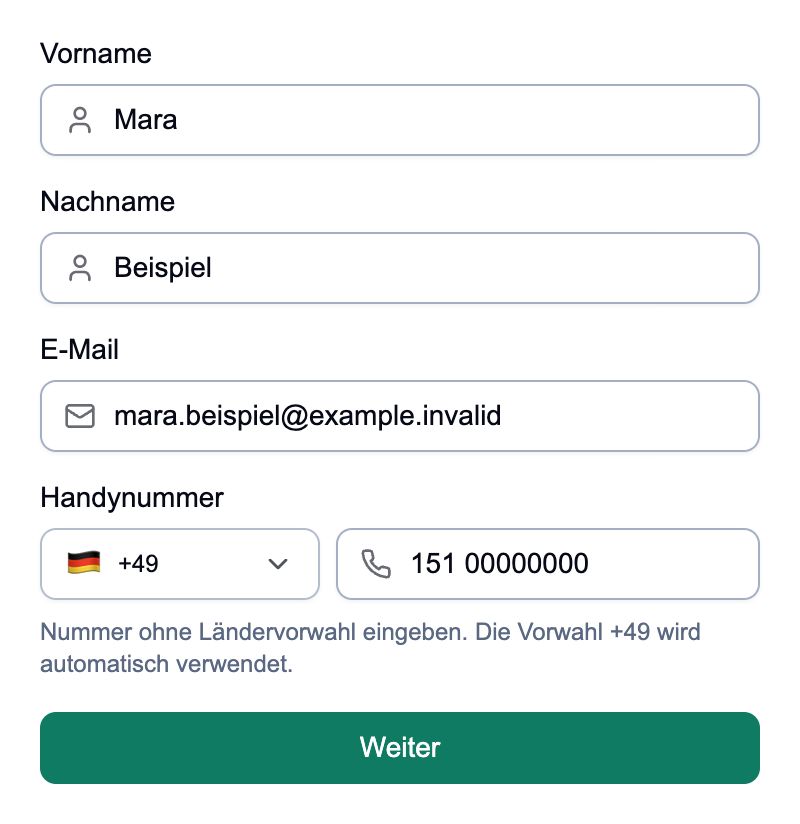
Personal data: Enter your own details. Name, email address and number in the image are sample data. - 03
Set your own password
At „Passwort“, enter a new password that you will use only for this account. It must contain at least eight characters: uppercase letters, lowercase letters, a number and a special character, for example an exclamation point.
Enter the same password again at „Passwort wiederholen“. Click „Weiter“. Do not share your password with anyone.
compleneo oneScreen detail · 03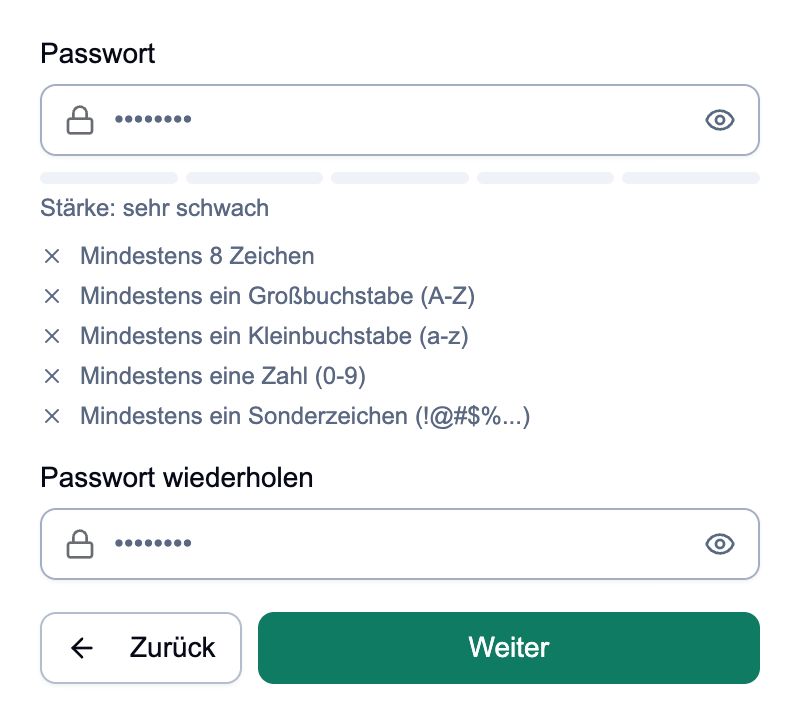
Both password fields must match. The notes under the first field show which requirements are still missing. - 04
Set up additional confirmation with your mobile phone
On the next page, „Authenticator App“ is selected. Open the designated authenticator app on your phone so it's ready.
On the computer, click „Registrieren & 2FA einrichten“. The system will now create your account and then show a QR code to connect to your app.
compleneo oneScreen detail · 04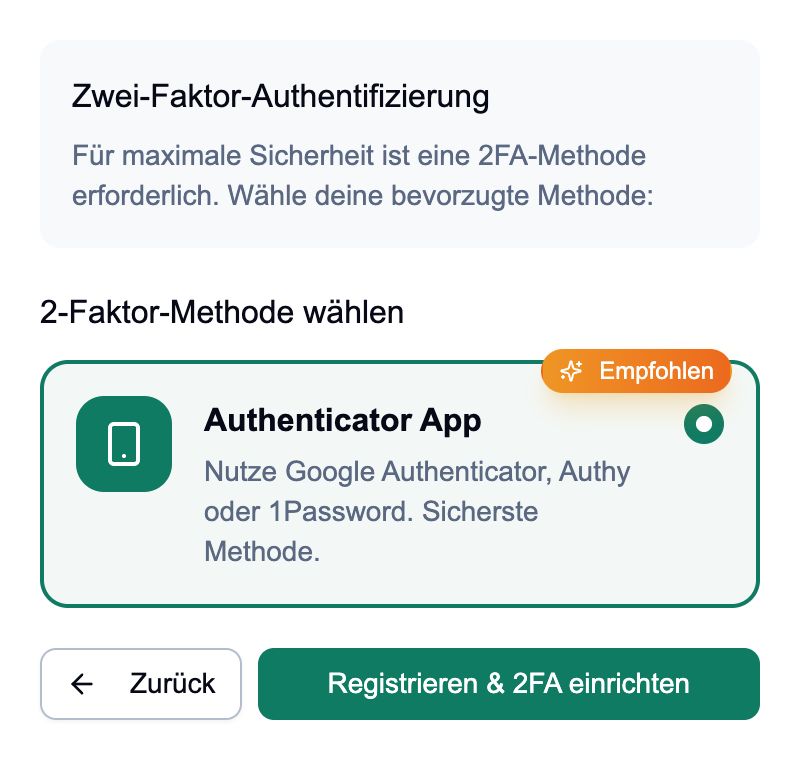
Select „Authenticator App“. You can access the QR code via „Registrieren & 2FA einrichten“. - 05
Scan the QR code with the authenticator app
Leave the registration page open on the computer. In your authenticator app on your phone, select „Konto hinzufügen“ or the plus sign, then select the QR code scan feature. The name depends on your app.
Point the phone camera at the QR code of your own registration page. A new entry appears in the app with a six-digit code.
Use the scan feature in the Authenticator app; the normal camera app is not enough for this.
compleneo oneScreen detail · 05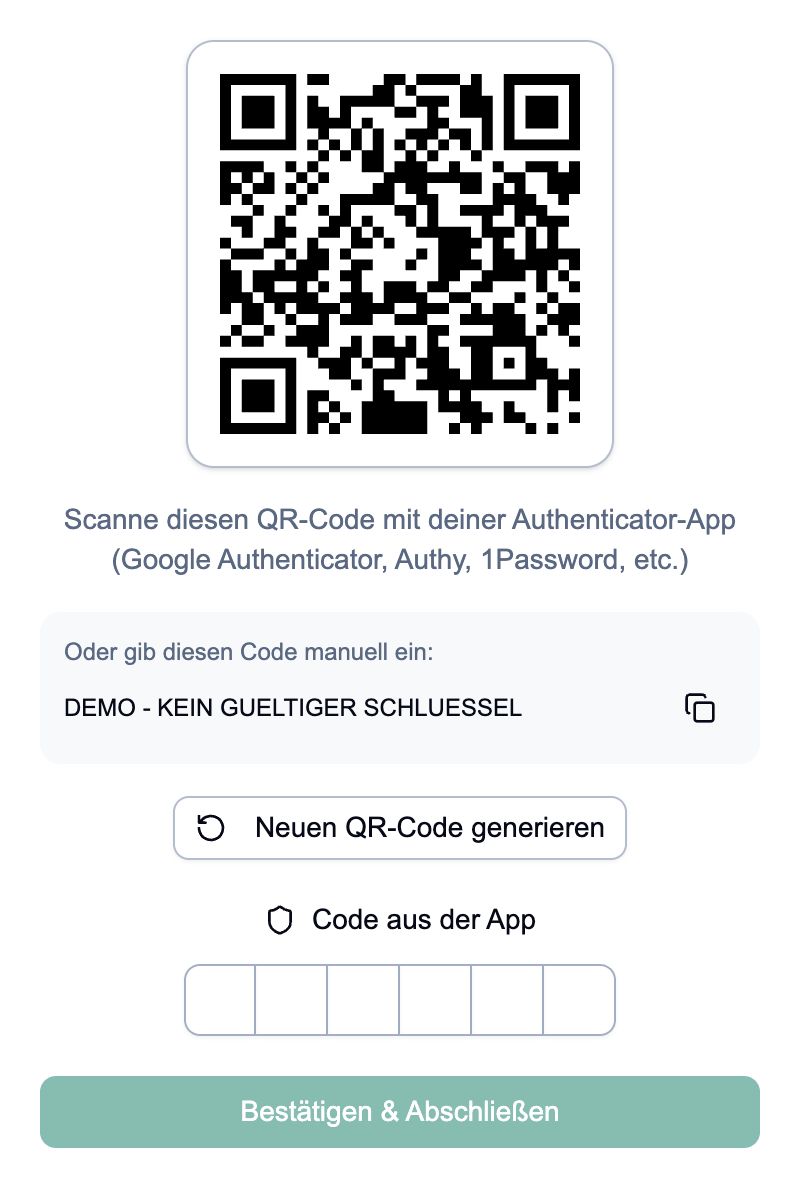
Just an example: This QR code and setup key are useless. Only scan the QR code on your own registration page. - 06
Enter the six-digit code
Read the current six-digit code from the newly added entry in your authenticator app. Enter the six digits on the computer at „Code aus der App“.
The check starts automatically after the last digit. If necessary, click „Bestätigen & Abschließen“. Leave the page open until confirmation appears. Keep the entry in your app: you will also need it the next time you log in.
- 07
Complete the registration
After successful verification, the confirmation page appears with „Dein Konto ist jetzt optimal geschützt“. Click „Zum Dashboard“ to open compleneo one.
Which areas and hotels you then see depends on the access rights that your company has assigned to you.
compleneo oneScreen detail · 07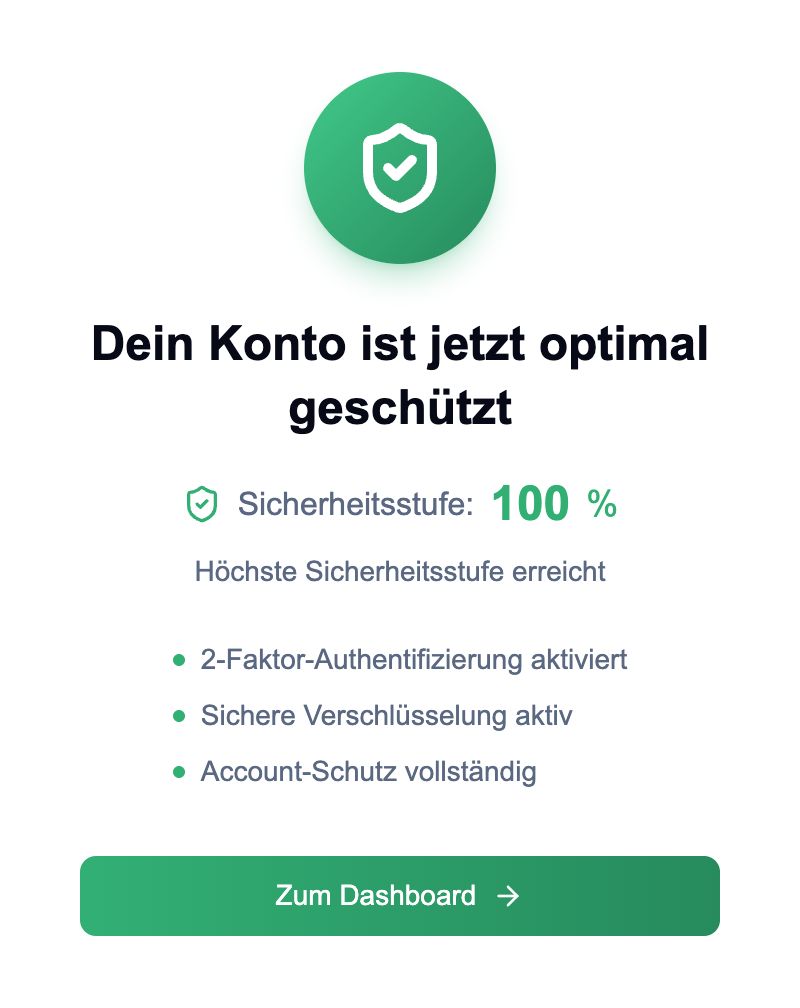
The screen confirms completion. Use „Zum Dashboard“ to open your workspace.
Done
You have seen the confirmation page and can open your workspace via „Zum Dashboard“. The entry for compleneo one remains saved in your authenticator app.
Frequently asked questions
My email address is not activated.
Check the spelling and whether you are using the correct email address. Ask the person responsible at your company to check the address stored and the activation. You cannot change this yourself on the registration page.
My email address is already registered.
Choose „Anmelden“ instead of creating an account again. If you no longer remember your password, use „Passwort vergessen“ on the login page. If you previously interrupted setup or are unable to provide the app code, contact your operational representative.
I cannot scan the QR code.
Make sure you have the scan function open within the Authenticator app. If you are using the registration page on the same phone, you can manually enter the displayed setup key in the app. Use the option to set up an account manually. Get help if needed. Do not give the key to other people.
The code is not accepted.
Use the code from the compleneo-one entry you just created in your authenticator app. Wait for the app to show a new code and enter it directly. If errors persist, check whether the date and time are set automatically on your phone. If the problem persists, ask your responsible person for help. Do not share your password or setup key.
I interrupted the setup.
According to „Registrieren & 2FA einrichten“, your account may already be created, even if confirmation is still missing. Then do not register with a different email address. Try logging in and contact your designated person if you are unable to continue setup.
After registration, my hotel or work area is missing.
Your registration sets up the personal account. Hotel access and authorizations are assigned by your company. Tell your responsible person the missing area and the required hotel.
Status: Oct 23, 2026