The images show the German app. Captions in quotes remain as in the app.

Table of contentsOpen/close

RESERVATIONS & GUESTS

Reservations.
Everyone stays in one place.

Find, create and change reservations, assign rooms and maintain guest profiles.

To the overview

For reception and reservations

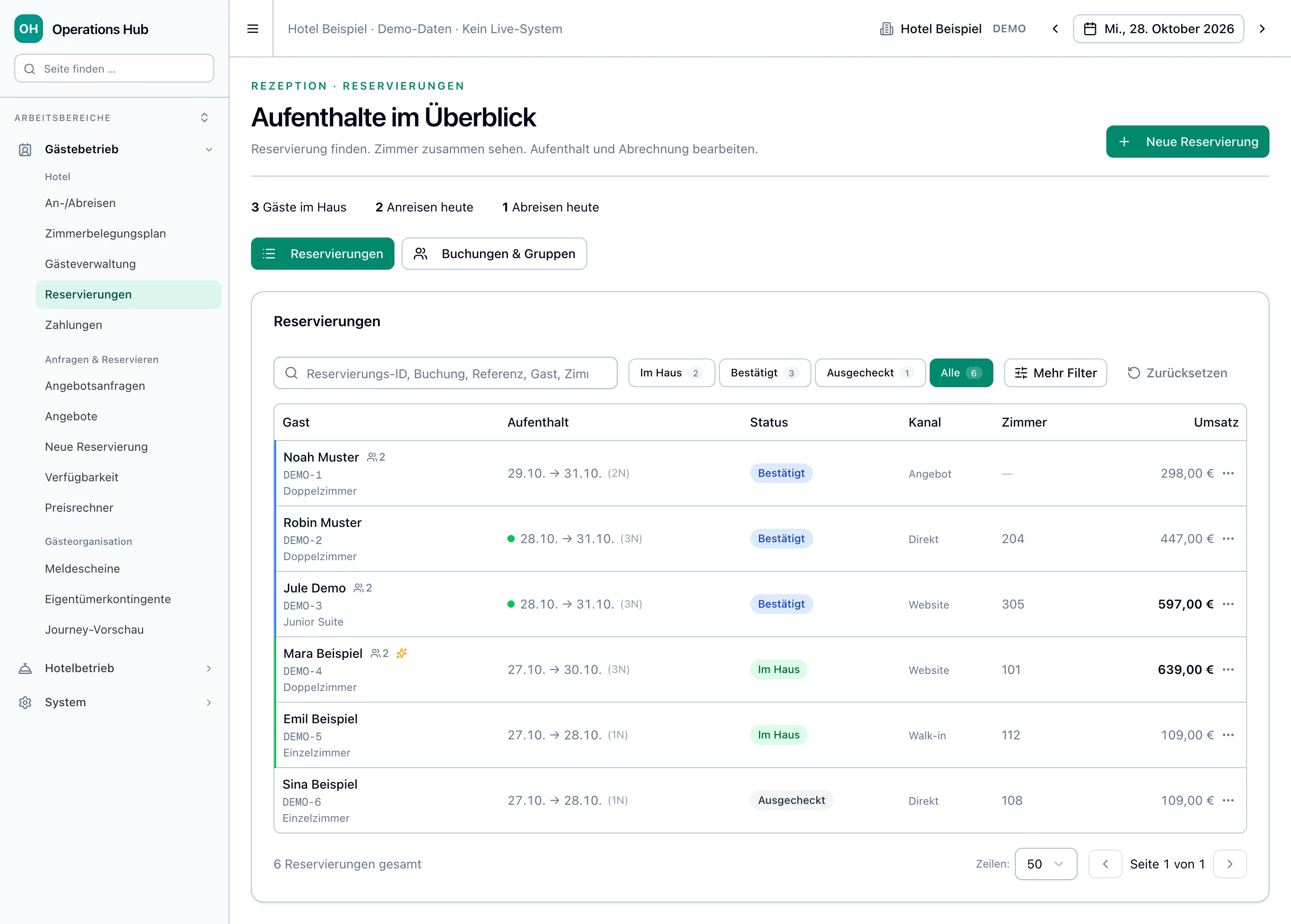
List „Aufenthalte im Überblick“ with key figures for today, status „Alle“ and six reservations, including Mara Beispiel in the house in room 101.
Original product components with invented data · simplified demo framework
WHERE CAN I FIND THIS?

Operations → Guest Operations → Reservations

To the facility

OVERVIEW

What you can do about reservations.

From the first call to the reservation to the right room, plus the guest profiles of your guests. The features you see depend on your hotel's activation and your role.

List „Aufenthalte im Überblick“ with key figures for today, status „Alle“ and six reservations, including Mara Beispiel in the house in room 101.

Where can I find the reservation?

Find reservations

You can find reservations by guest name, number or room and see how many arrivals and departures are due today.

  • Search
  • status
  • More filters
  • The day in numbers
  • Bookings & Groups

Guest operations → Reservations

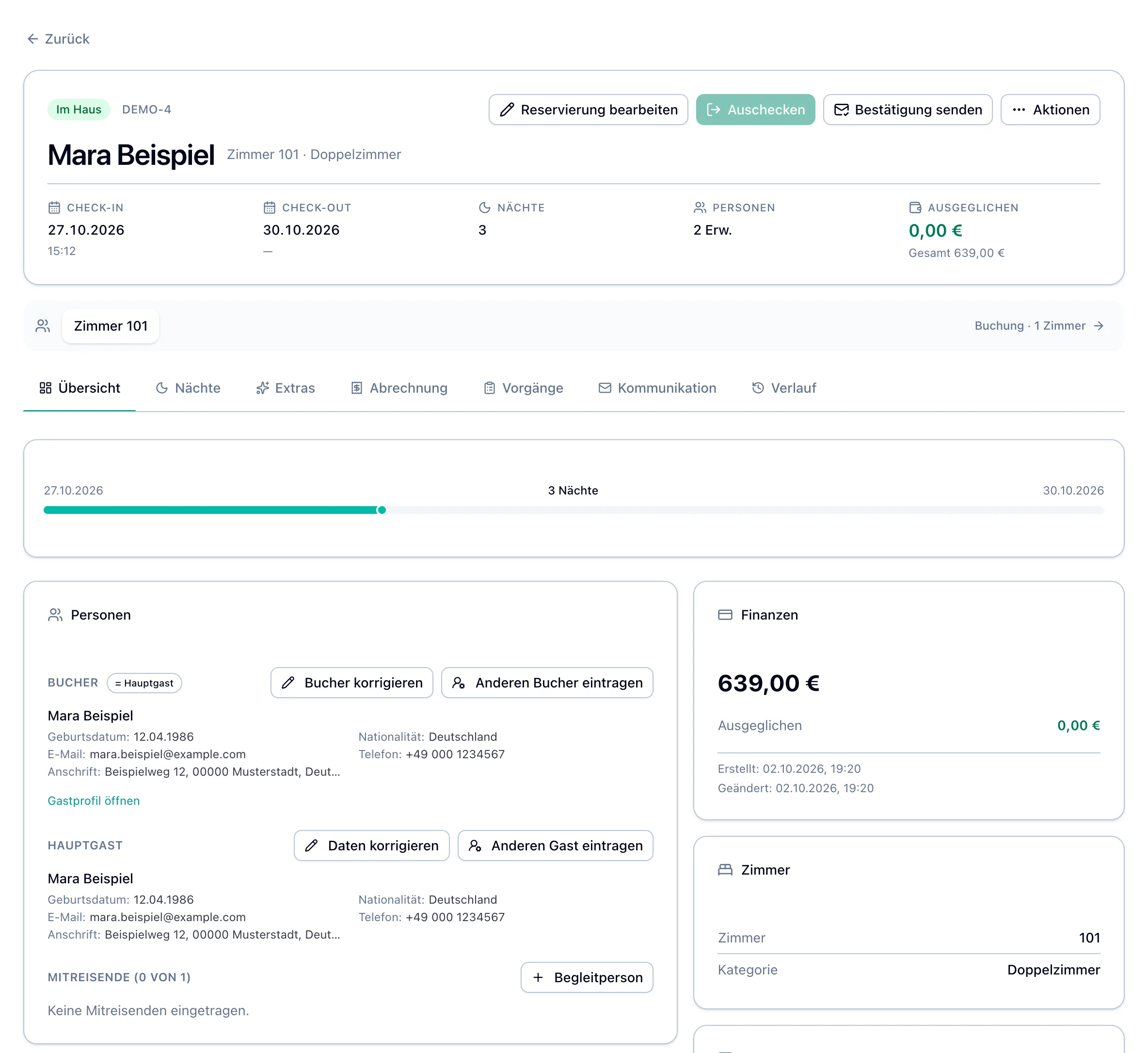
Reservation of Mara Beispiel in status „Im Haus“, room 101, October 27th to 30th, with card „Personen“ and tabs from „Übersicht“ to „Verlauf“.

What is included in this stay?

Reservation in detail

You see everything about your stay in one place: guests, prices, emails and changes.

  • Everything at a glance
  • Guests and accompanying persons
  • Acknowledgment and communication
  • History

Reservations → Click reservation

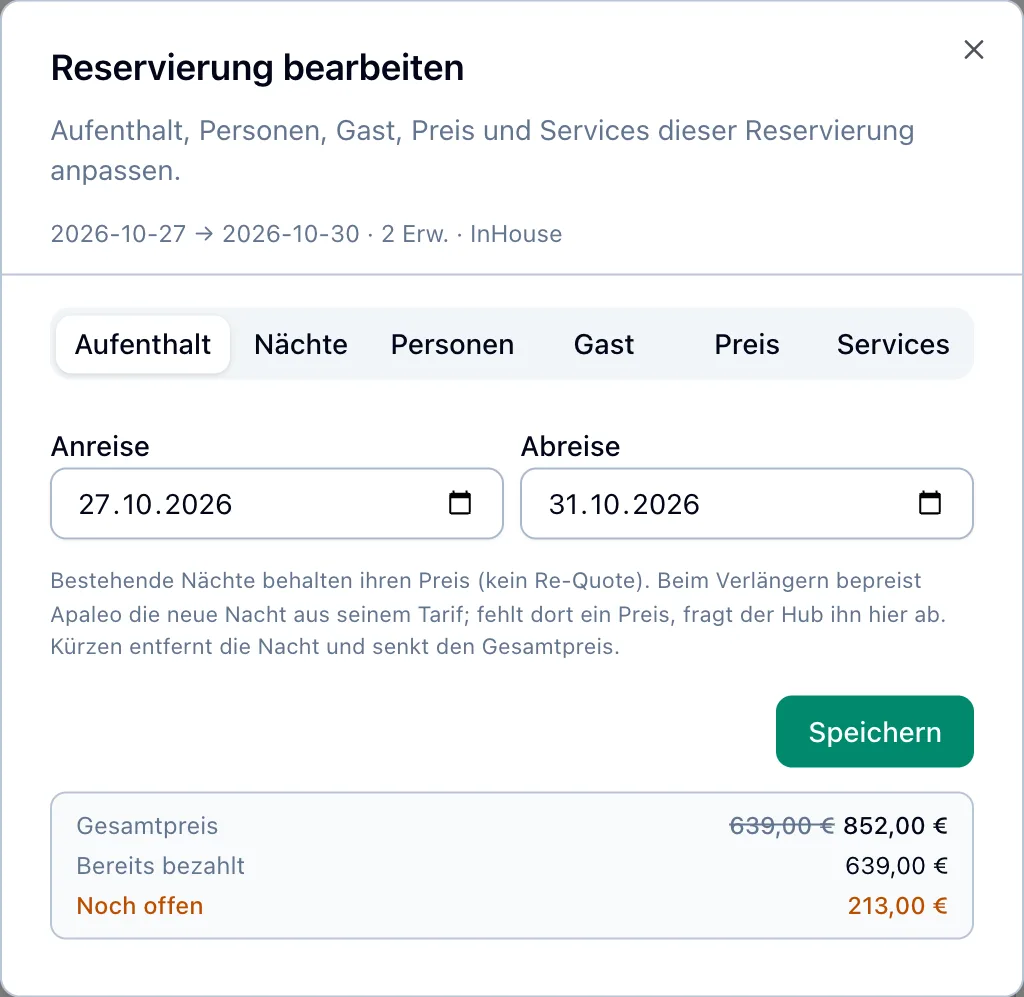
Dialogue „Reservierung bearbeiten“ with the riders from „Aufenthalt“ to „Services“: Departure extended to October 31, 2026, total price €852.00 instead of €639.00, of which €213.00 is „Noch offen“.

What changes to the stay?

Change stay

You change dates, people, packages, services and rooms without creating a new reservation.

  • Data and people
  • Skip the rules
  • Change package
  • Services
  • Change rooms

Reservation → Edit reservation · Actions · Change package

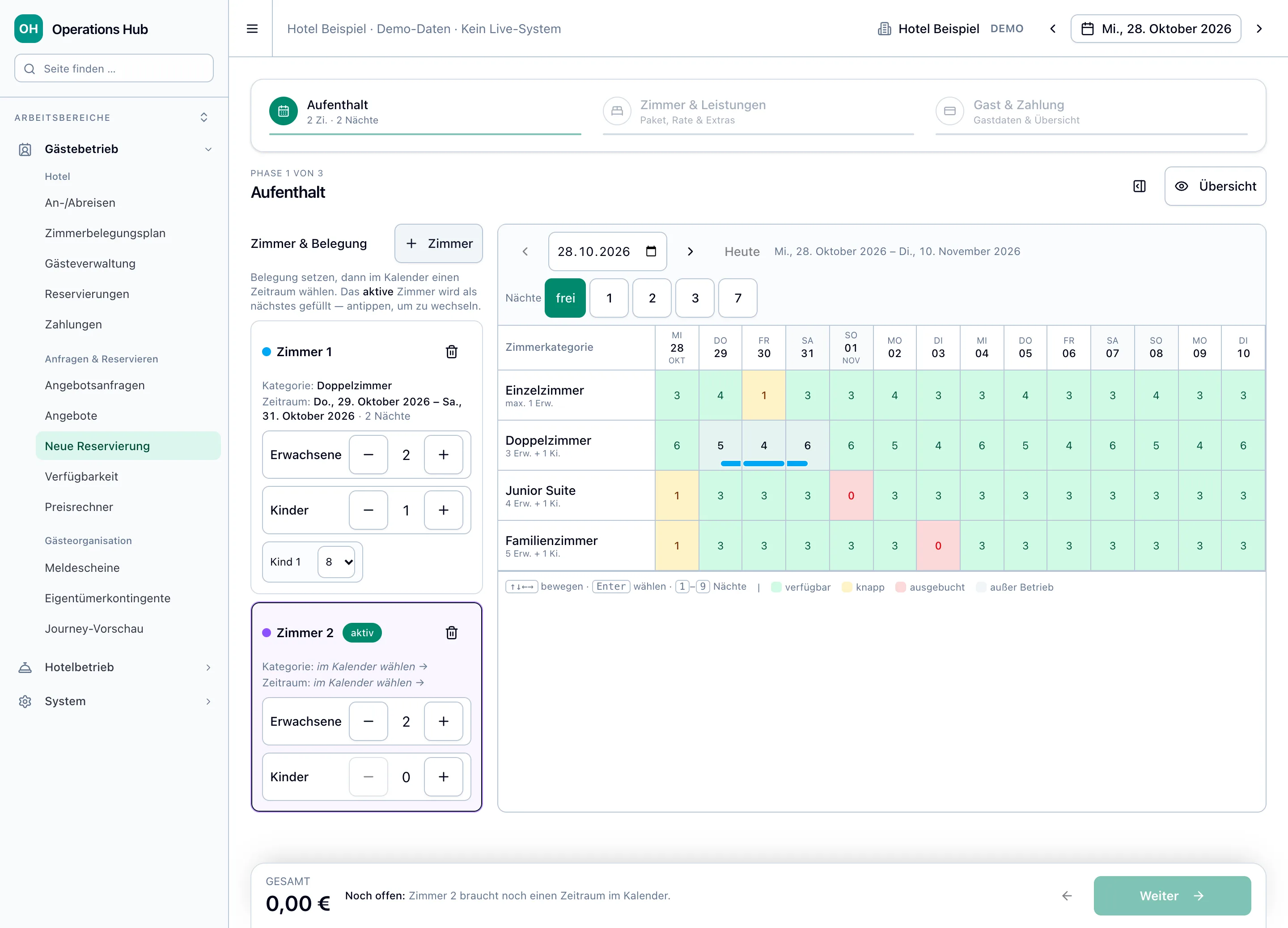
Step „Aufenthalt“ with two rooms: For room 1, October 29th to 31st in the double room is selected in the grid, room 2 is next.

When does the guest come and what does he book?

New reservation

You can create telephone and walk-in reservations in three steps, even with multiple rooms.

  • Period in the calendar
  • Several rooms
  • Package and additional services
  • Guest and payment
  • Skip rules & availability

Guest operations → New reservation

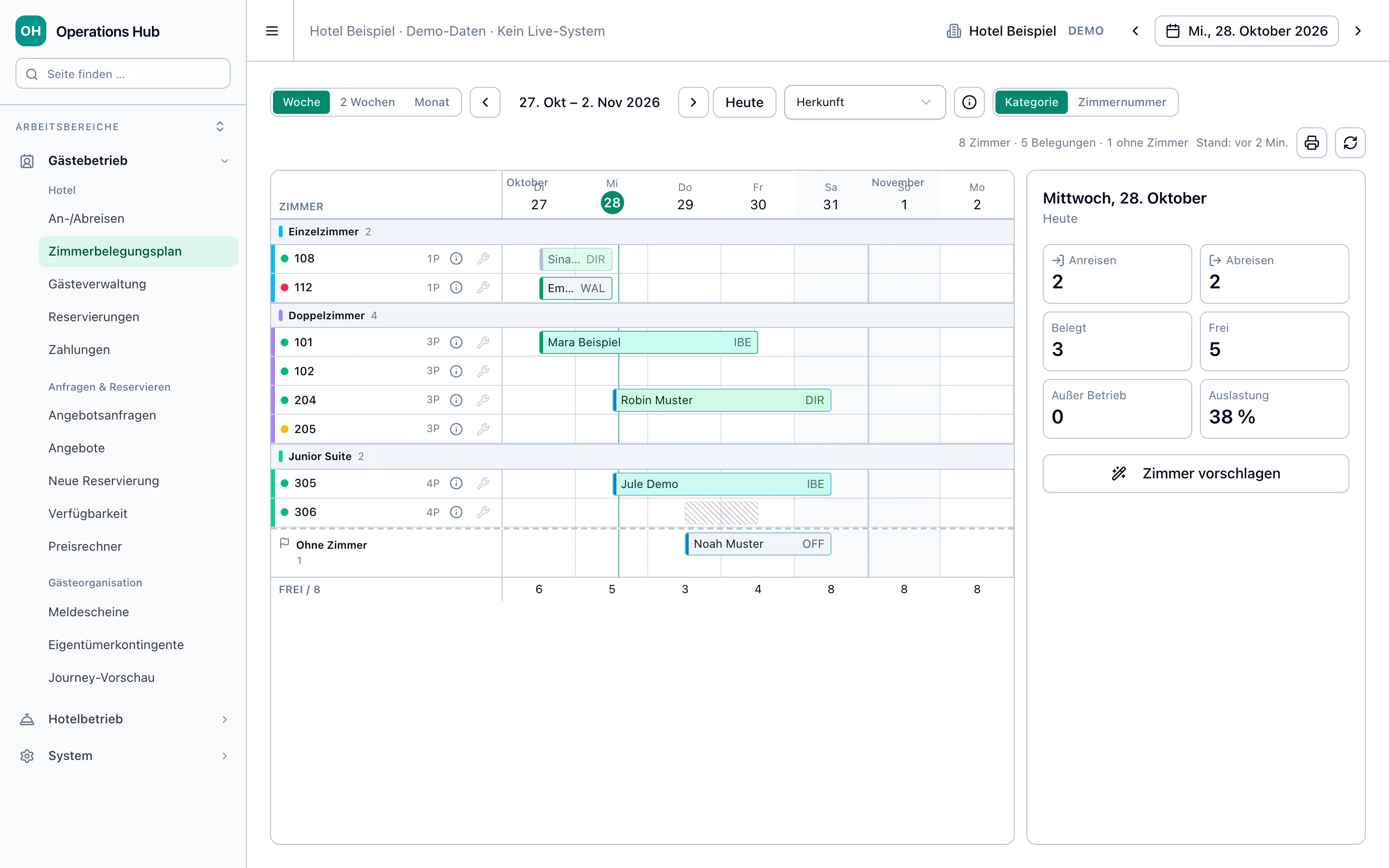
Room occupancy plan for the week starting October 27th: stay bar by origin, Noah Muster under „Ohne Zimmer“, daily overview on the right.

Which room is available when?

Room occupancy plan

You can see the occupancy of all rooms at a glance and assign rooms by dragging.

  • Period and coloring
  • Assign rooms
  • Without a room
  • Daily overview
  • Print

Guest operations → Room occupancy plan

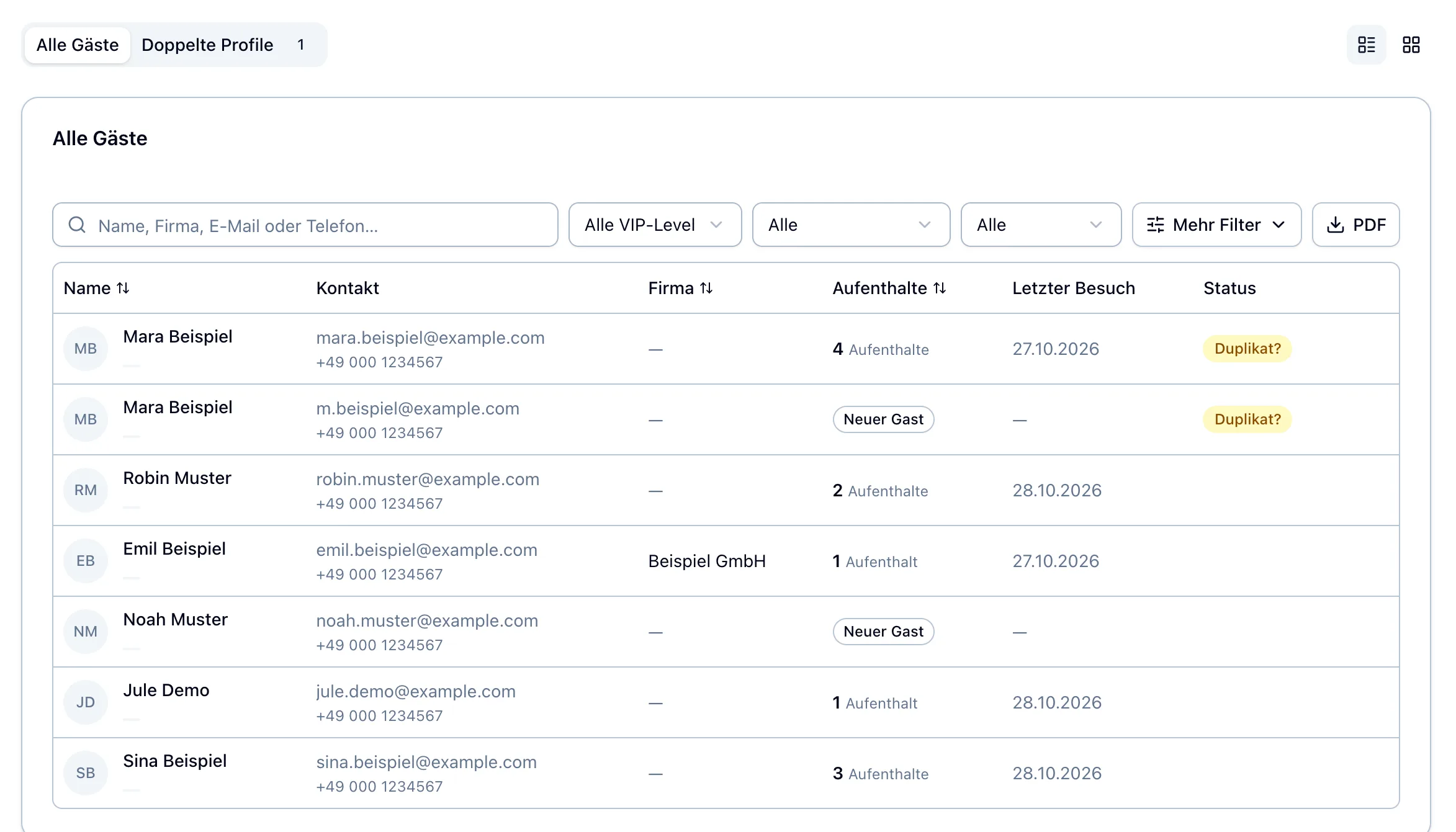
Guest management with search, filters and guest table; the tab „Doppelte Profile“ reports a possible duplicate of Mara Beispiel.

Who is this guest?

Guest management

Find guests, see their stays and preferences, and merge duplicate profiles.

  • Find guests
  • Guest profile
  • Interaction log
  • Duplicate profiles

Guest operations → Guest management

IN EVERYDAY LIFE

Step by step.

Eight typical tasks on the real surface. Choose a task and go through the steps at your own pace.

Create reservation

Mara Beispiel calls and books a double room from October 29th, 2026 to October 31st, 2026 for two adults and one child.

STEP 1 OF 5

Select period

Under „Gästebetrieb“ → „Neue Reservierung“ set the occupancy for „Erwachsene“ and „Kinder“, for each child and age. In the grid in the category line, first click on the day of arrival, then the day of departure.

The result
The room card shows „Kategorie: Doppelzimmer“ and the two night period.
1 / 5
Step „Aufenthalt“: For room 1 with two adults and one child, October 29th to 31st in a double room is selected.
Original product component · Demo dataEnlarge image

COMMON ERRORS

Four errors that are not immediately visible.

These errors affect guests, data or money and are not immediately noticeable in everyday life. Here's how to avoid them.

  1. Date or people changed, confirmation not resent

    What happens
    After „Reservierung bearbeiten“, no new confirmation is sent out, the guest only has the old status. „Erneut senden“ in the „Kommunikation“ tab sends an exact copy of the old email.
    This is the right way
    After each change via „Reservierung bearbeiten“, select „Bestätigung senden“ in the reservation header. This confirmation is based on the current status. Instructions "Resend confirmation“ →
  2. A guest in the house was moved to another room in the room occupancy plan

    What happens
    Pulling postpones the entire stay without notice, including the nights already spent. After that, the occupancy of the previous days is no longer correct.
    This is the right way
    Move guests in the house via „Zimmer wechseln“ with „Ab heute“. Then the nights spent stay in the previous room. Instructions "Change rooms“ →
  3. „Auf Rechnung“ created with only typed invoice recipient

    What happens
    Without a hit from „Apaleo-Firma suchen“, no company will arrive in Apaleo. The invoice then does not go to the company, and this only becomes apparent when the invoice is received.
    This is the right way
    Always select the invoice recipient via „Apaleo-Firma suchen“. If the company is missing, first create it in Apaleo. Instructions "Create reservation“ →
  4. Two profiles merged prematurely

    What happens
    „Zusammenführen“ works immediately and cannot be taken back. The duplicate's street, zip code, notes and tags are not included, and for two different people both stays are attached to one profile.
    This is the right way
    First compare your date of birth, email and telephone, if in doubt choose „Nicht dieselbe Person“. Transfer the street, zip code, notes and tags from profile B to profile A with „Gast bearbeiten“. Instructions "Merge duplicate profiles“ →

QUESTIONS & ANSWERS

Answered briefly.

Why can't I find a reservation?

The list starts with the status „Im Haus“: select „Alle“ or after a search „In allen Status suchen“. It appears in every status with the exact reservation or booking number. The name search only finds the main guest; If a booker calls, ask for the guest or the number.

When can I record a no-show?

From the day after arrival, as long as the reservation is „Bestätigt“. Then select „Aktionen“ → „No-Show“ in the reservation; the status changes immediately, without query.

Why doesn't the guest receive an email?

Without an email address, „Bestätigung an Gast senden“ is grayed out. Enter the address on the map „Personen“ with „Daten korrigieren“ and select „Bestätigung senden“. If the „Kommunikation“ tab says „Zustellung dauerhaft blockiert“, no email will be sent to this address; clarify the address with the guest.

How do I remove a booked service?

Under „Reservierung bearbeiten“ → „Services“ select the trash can symbol („Service entfernen“) under Performance. The service will be immediately removed from the reservation.

Where do I change the comment of a reservation?

Under „Reservierung bearbeiten“ → „Gast“. There you change „Interne Notiz“ and „Gast-Kommentar“ and save. In the „Übersicht“ the comments are only available for reading.

What does „Der neue Name gehört zu einem anderen Menschen“ mean?

This message occurs when you enter someone else's name using „Daten korrigieren“. „Daten korrigieren“ is for typos by the same person; for a new guest, select „Personen“ „Anderen Gast eintragen“ on the map.

Does the price change if I change the number of people?

Only with a tariff that calculates based on occupancy. You can change the number of people under „Reservierung bearbeiten“ → „Personen“ with „Erwachsene“ and „Kinder (Alter, kommagetrennt)“. Enter the names of your fellow travelers on the card „Personen“.

Why am I missing the „Regeln & Verfügbarkeit übergehen“ switch?

Your role lacks its own right to do so; It is awarded by whoever takes care of the roles for you. The switch makes it possible to select packages outside of your rules, such as minimum stay, arrival day or sales period, as well as blocked and fully booked nights. Arrivals in the past and inactive packages remain blocked.

Why can I only choose „Jetzt zahlen“?

The selected package requires an advance payment, so „Später bezahlen“ and „Auf Rechnung“ show „Paket erfordert Vorzahlung“. „Jetzt zahlen – Anzahlung“ is only available for packages with partial down payment.

Why does the reservation still have the old email address?

„Gast bearbeiten“ in guest management only changes the guest profile, not the reservations. For a stay, correct the address in the reservation in the map „Personen“ with „Daten korrigieren“. The guest profile is also changed.

Why does the room occupancy plan show more free rooms than I can book?

The number „frei“ under the plan does not deduct stays without a room. The daily overview shows how many there are in a day with „… Belegungen ohne Zimmer an diesem Tag“. Availability in „Neue Reservierung“ counts for a new booking.

FACILITY

Set up reservations.

Two chapters for hotel management, in the order you set up. Each chapter ends with a short check.

Admin Hub → User Management → Roles & Rights · User Management

Roles and rights

Roles determine which pages and functions Reception and Reservations see and which hotels they apply to.

Here's how to set it up

  1. In the Admin Hub under „Benutzerverwaltung“ → „Rollen & Rechte“ select the role of your reception team or create it with „Neue Rolle“. Select „Berechtigungen“ in the menu; „Schreiben“ automatically activates „Lesen“.
  2. For the reception team, under „Hub-Zugang“ check hub:operations „Zugang“ and under „Operations Hub“ „Schreiben“ check operations:reservations and operations:checkin, „Lesen“ check operations:zimmerplan. „Cancel“ at operations:reservations allows no-show and cancellation.
  3. For guest management and interaction log check „Schreiben“ and „Verwalten“ at operations:guests, „Schreiben“ at operations:guest-logs and in the „Sales Hub“ area at sales:guests, then „Speichern“.
  4. Users allowed to override rules also need „Override-rules“ under „Weitere Aktionen“ for operations:reservations; hover to see the full permission name. Without this permission, „Neue Reservierung“ does not show the „Regeln & Verfügbarkeit übergehen“ switch.
  5. To configure guest matching, you also need „Lesen“ for admin:settings in „Administration“.
  6. For each role under „Hotels zuweisen“ set the hotels, without hotel it will not see any hotel data. Then under „Benutzerverwaltung“ → „User Management“ select „Rollen bearbeiten“ for the user and check the roles.

Done when...

… a person with the role of reception team sees „Gästebetrieb“ „Reservierungen“, „Neue Reservierung“, „Zimmerbelegungsplan“ and „Gästeverwaltung“.

1 / 2
Checklist before release
  • Roles with rights and hotels created and assigned
  • Test subject sees „Reservierungen“, „Neue Reservierung“ and „Zimmerbelegungsplan“
  • „Automatische Synchronisation“ on, last run „Erfolgreich“
  • Guest management shows profiles and „Doppelte Profile“
  • Played through „Neue Reservierung“ to „Gast & Zahlung“, without „Reservierung anlegen“
  • Preview checked under „Bestätigung senden“ on an existing reservation without sending
  • „Override-rules“ assigned to roles that are allowed to ignore rules