The images show the German app. Captions in quotes remain as in the app.

Table of contentsOpen/close

RESERVATIONS & GUESTS

Enquiries & offers.
From inquiry to booking.

Answer inquiries, send personal offers and keep an eye on every offer.

To the overview

For reservations, reception and sales

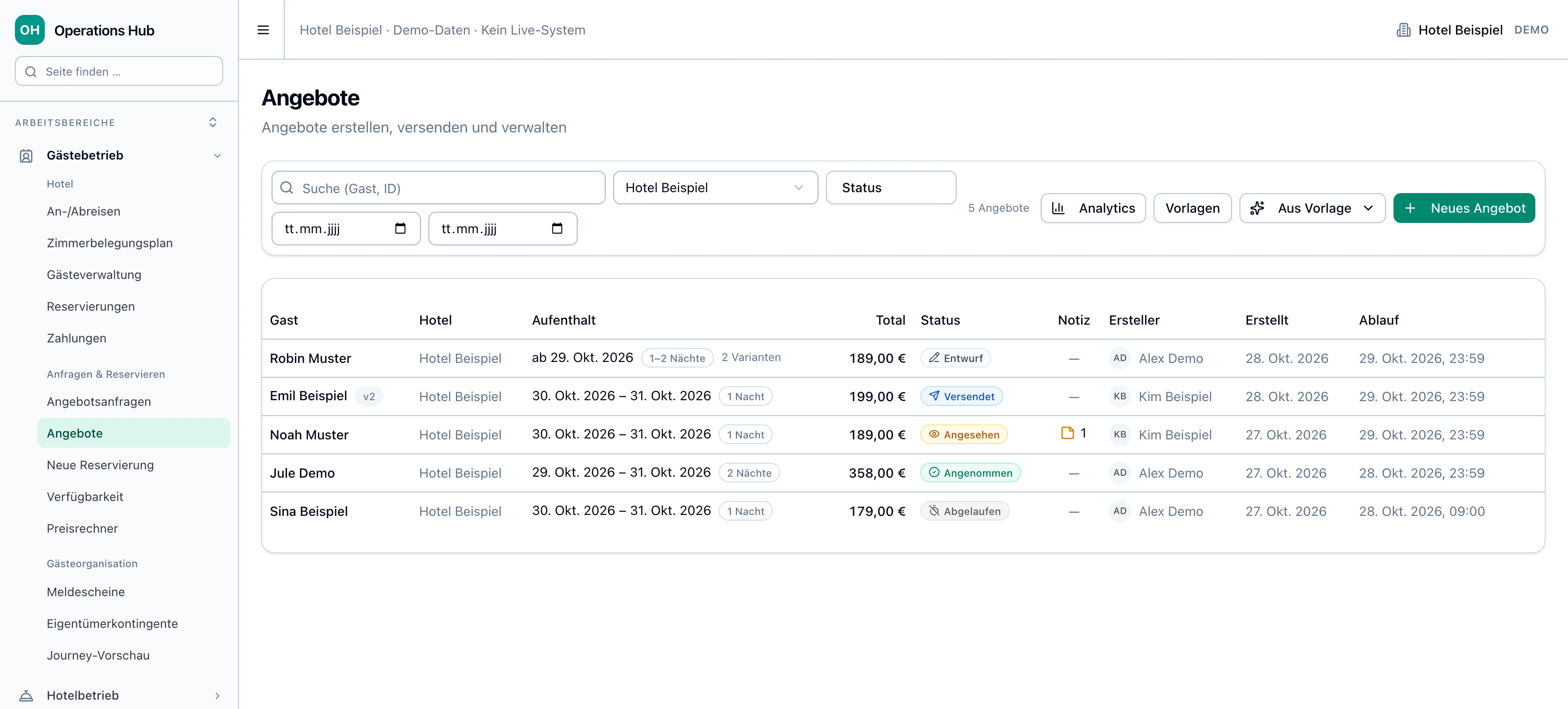
List „Angebote“ in the hotel Example with five offers from „Entwurf“ to „Angenommen“, one in version 2 and one with two variants.
Original product components with invented data · simplified demo framework
WHERE CAN I FIND THIS?

Operations → Guest Operations → Quote Requests · Offers

To the facility

The images show the previous interface version. The fixed discount is now called „Betrag (€)“ and is entered in euros.

OVERVIEW

What you can do with inquiries & offers.

An inquiry via your website becomes a personal offer with several options that the guest accepts online. The features you see depend on your hotel's activation and your role.

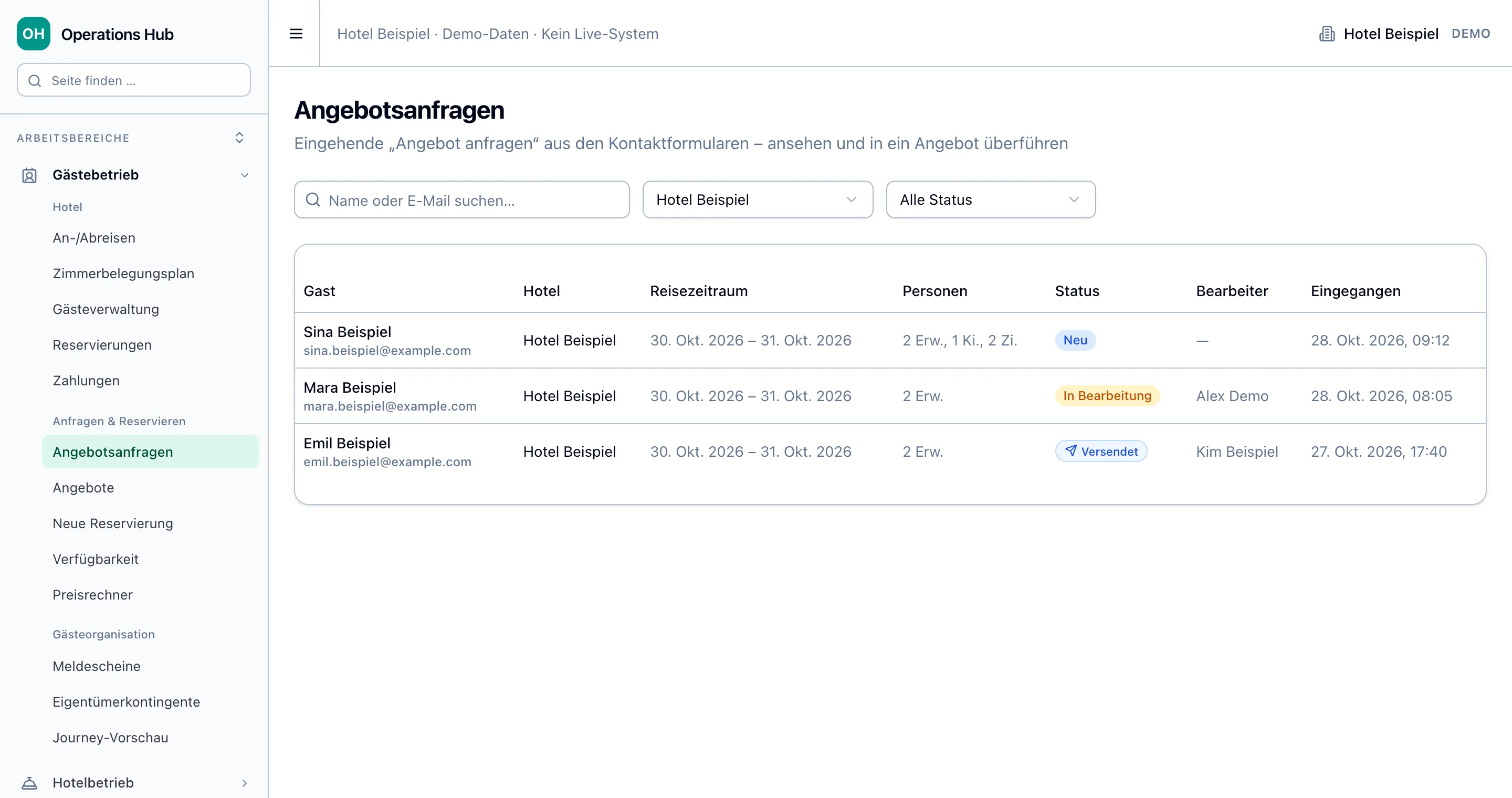
List „Angebotsanfragen“ in the hotel Example: Sina Beispiel new, Mara Beispiel in progress at Alex Demo, Emil Beispiel with sent offer.

Which requests are open?

Inquiries

You can immediately see which requests from your website are new and who is processing them.

  • Directly from the website
  • All wishes at a glance
  • Status and processor
  • Decline politely

Guest operations → Quotation requests
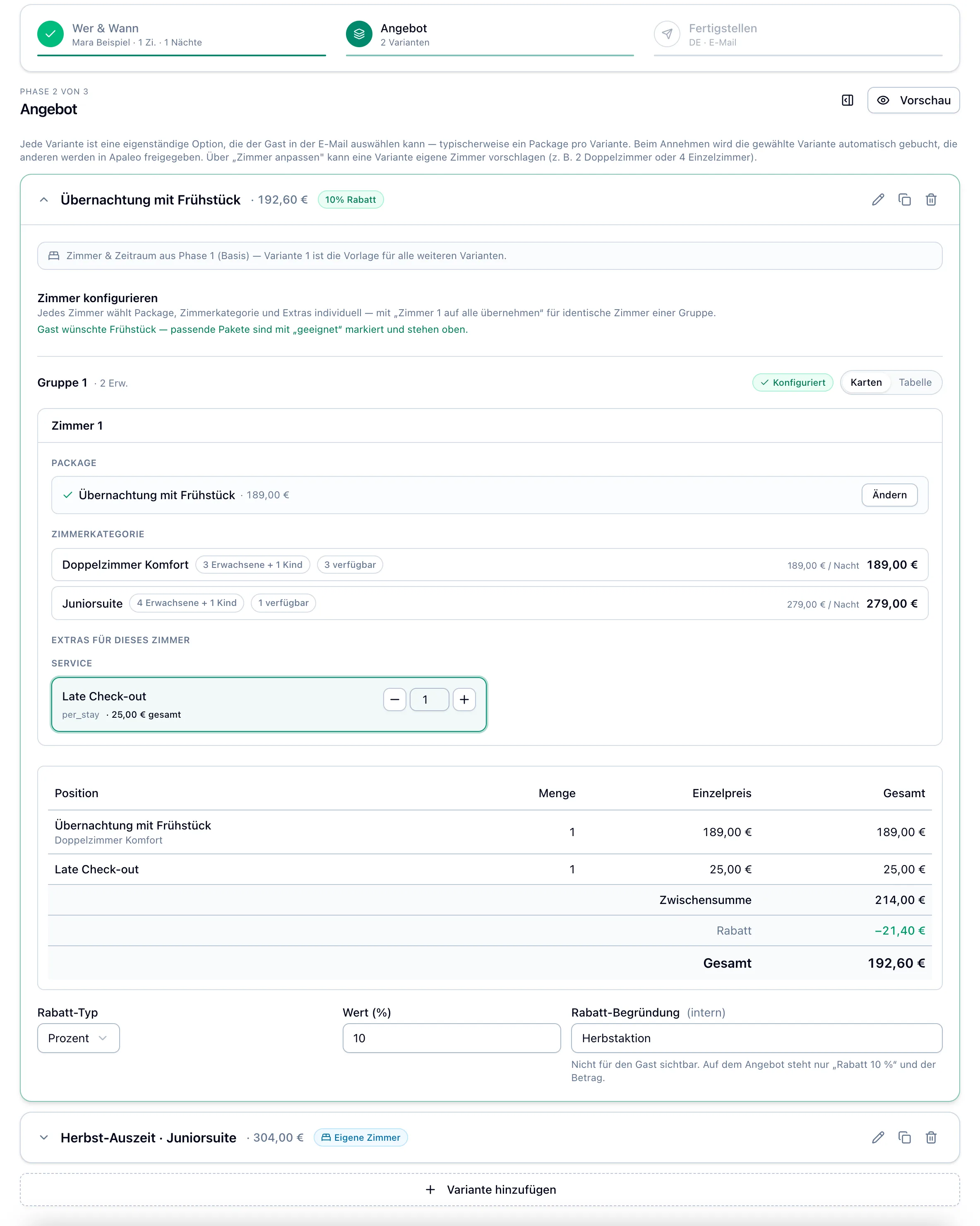
Phase „Angebot“ for Mara Beispiel: two variants, package and room category selected, an extra and the price table with a ten percent discount.

What do we offer the guest?

Put together an offer

You put together rooms, packages and extras and immediately see availability and price.

  • From the request
  • Guest and previous offers
  • Up to five variants
  • Packages, rooms and extras
  • Price and discount

Inquiry → Create offer · Offers → New offer

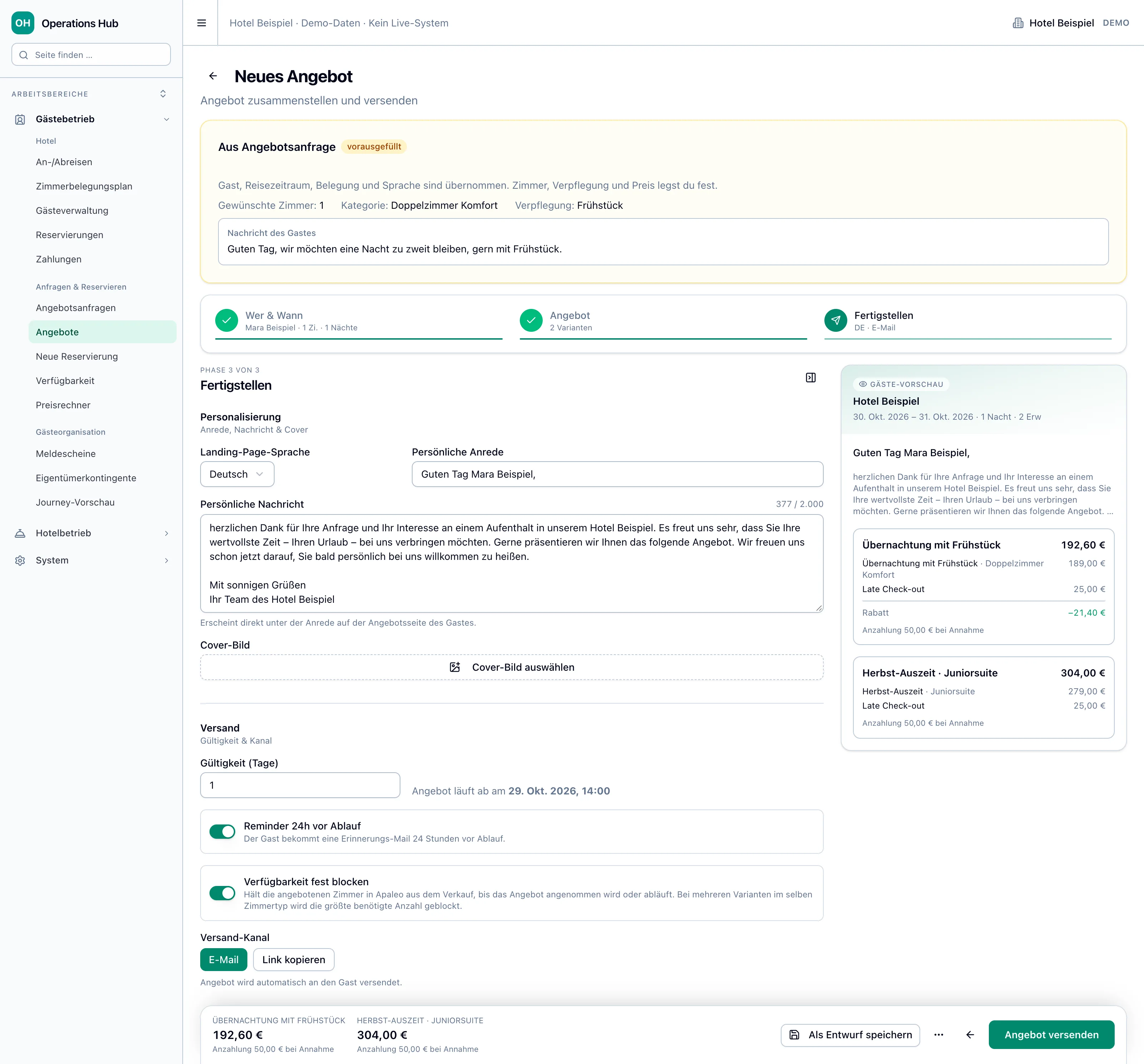
Phase „Fertigstellen“: Salutation and message for Mara Beispiel, validity one day, reminder and „Verfügbarkeit fest blocken“ switched on, guest preview on the right.

How does the offer reach the guest?

Personalize & send

You give the offer a personal touch and send it via email or as a link.

  • Make it personal
  • Guest preview
  • Validity and reminder
  • Block room tightly
  • Email or link

New offer → Finish

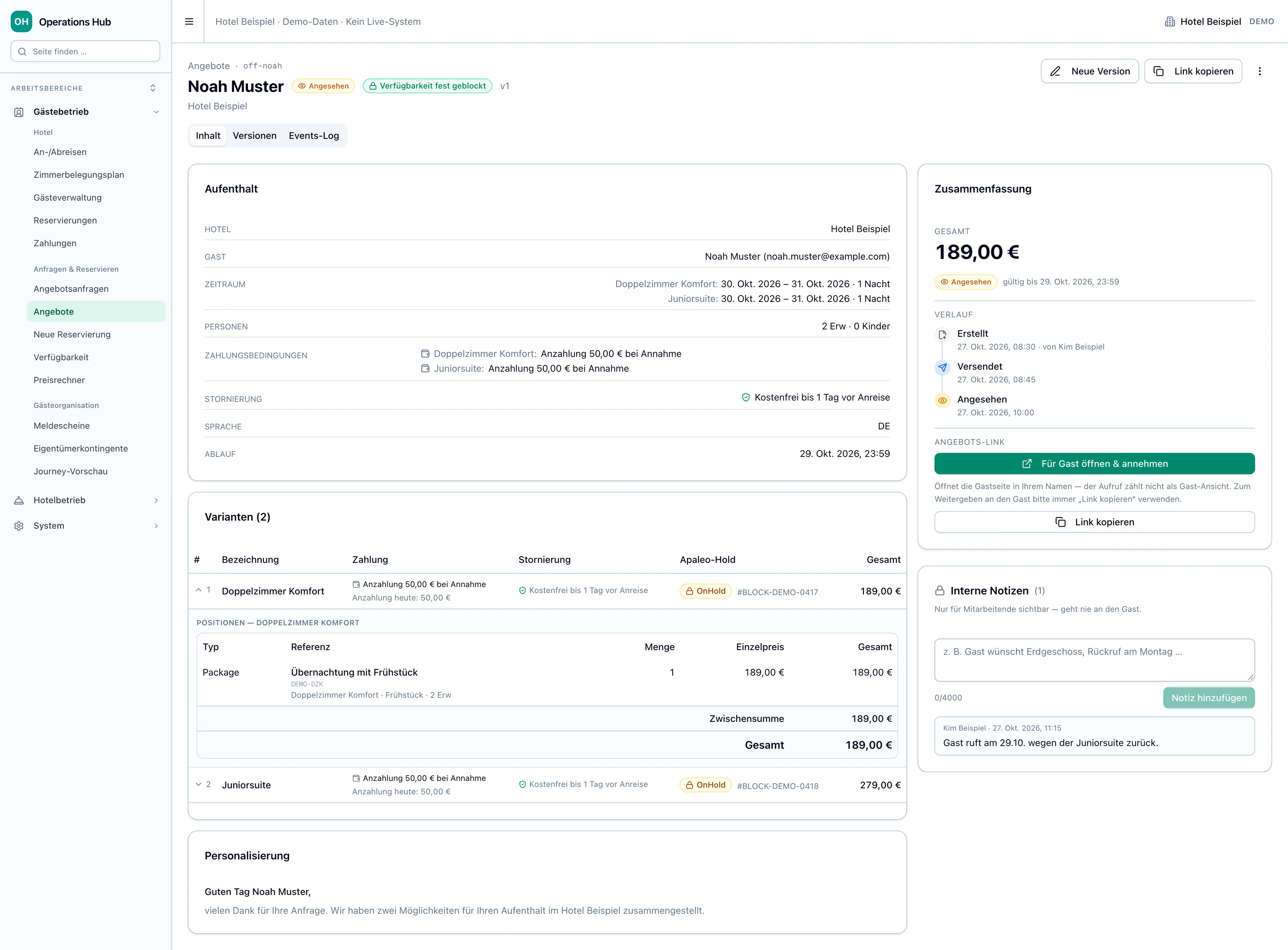
Offer for Noah Muster in status „Angesehen“ with „Verfügbarkeit fest geblockt“, two variants, history and an internal note of Kim Beispiel.

Where is which offer?

Offers at a glance

You can see at a glance which offers are still open and which the guest has already accepted.

  • Status at a glance
  • Search and filter
  • History
  • Internal notes
  • Change and resend

Guest operations → Offers · Click on offer

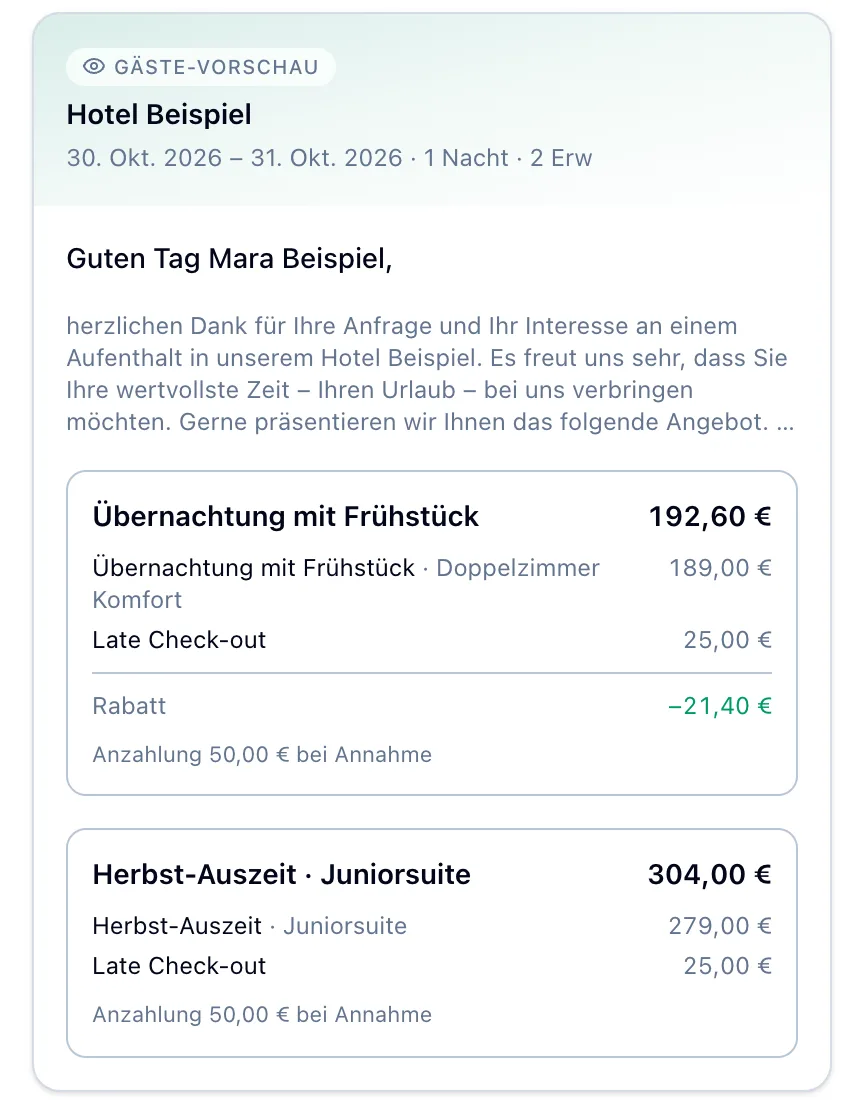
„Gäste-Vorschau“ on offer for Mara Beispiel: October 30th to 31st, personal salutation and two options with price and 50 euros deposit upon acceptance.

How does the guest book?

Acceptance & booking

The guest selects an option online and assumes that they will receive the completed reservation without typing it.

  • Offer page without login
  • Accept and pay
  • Reservation automatic
  • Acceptance on the phone

Guest offer page · Offer → Open to guest & accept

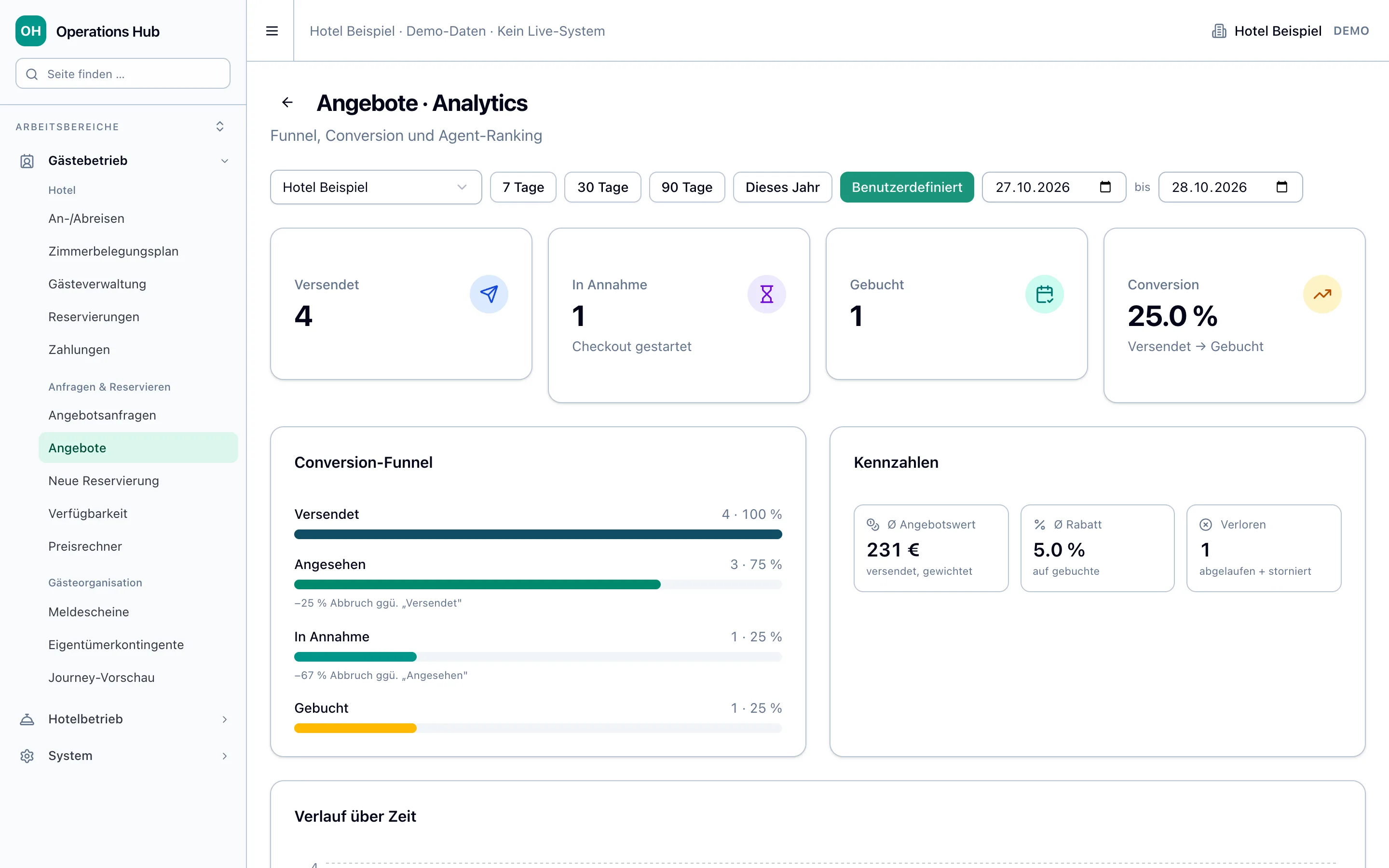
„Angebote · Analytics“ for the hotel Example: Tiles and conversion funnel for the selected period.

How many offers lead to a booking?

Evaluation

You can see how many offers lead to bookings and at what point guests drop out.

  • Conversion funnel
  • Key figures
  • Agent Ranking
  • Period and hotel

Offers → Analytics

IN EVERYDAY LIFE

Step by step.

Six typical tasks on the real surface. Choose a task and go through the steps at your own pace.

Create an offer from a request

Mara Beispiel requests a night in a double room with breakfast at the end of October via the website.

STEP 1 OF 5

Accept request

In „Angebotsanfragen“, open the query of Mara Beispiel and select „In Bearbeitung nehmen“.

The result
The request is on „In Bearbeitung“, your name is on „Bearbeiter“.
1 / 5
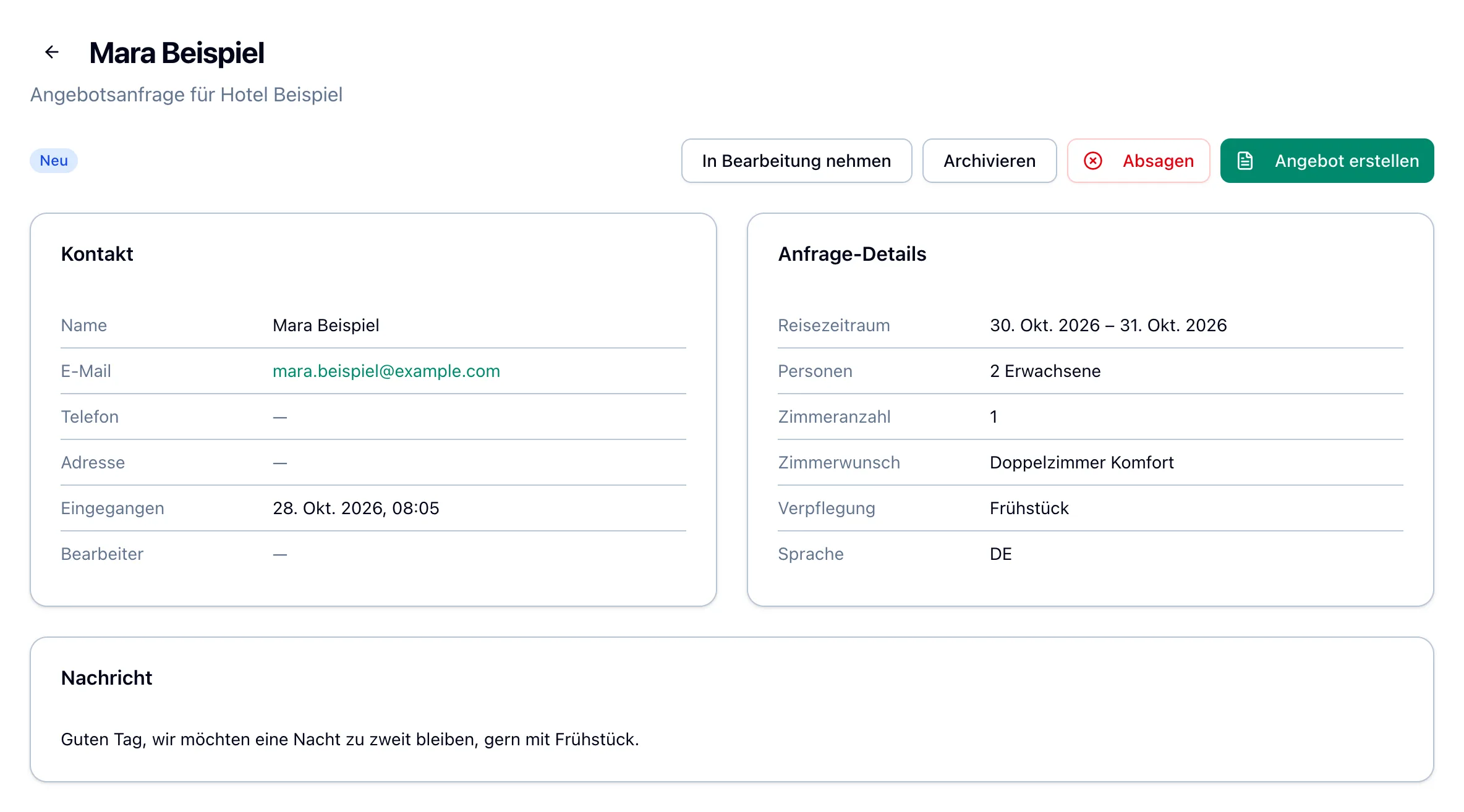
Request from Mara Beispiel in status „Neu“ with buttons „In Bearbeitung nehmen“, „Archivieren“, „Absagen“ and „Angebot erstellen“, including cards „Kontakt“, „Anfrage-Details“ and „Nachricht“.
Original product component · Demo dataEnlarge image

COMMON ERRORS

Five mistakes that cost guests and bookings.

These errors are not immediately noticeable in everyday life. Here's how to avoid them.

  1. Sent offer changed with „Als Entwurf speichern“

    What happens
    Simply saving creates a new version: By the time it is sent, the guest's link shows „Angebot nicht gefunden“ and the rooms are free.
    This is the right way
    Complete changes to a sent offer in one go with „Neue Version versenden“. Instructions "Change sent offer“ →
  2. Sent a draft at the top of the listing

    What happens
    „Versenden“ and „Link kopieren“ above in the offer never block the rooms; If one is sold upon acceptance, the guest cannot accept it.
    This is the right way
    Open a draft with „Bearbeiten“ and select „Angebot versenden“ in „Fertigstellen“ with „Verfügbarkeit fest blocken“ on. „Verfügbarkeit fest geblockt“ shows above whether it worked. Instructions "Reactivate an expired offer“ →
  3. A fixed discount entered in cents as before

    What happens
    For „Betrag (€)“, the entry in euros counts: „5000“ means €5,000 instead of the agreed €50.
    This is the right way
    Enter „50“ for a €50 discount. Then check the line „Rabatt“ and the total price in the price table. Instructions "Create an offer from a request“ →
  4. An offer for a guest with a different language

    What happens
    A guest with a different language reads the salutation and message in German because the system always suggests them in German.
    This is the right way
    Write in „Fertigstellen“ „Persönliche Anrede“ and „Persönliche Nachricht“ in the guest's language and check in „Gäste-Vorschau“. Instructions "Create an offer from a request“ →
  5. Waited for a message to respond from the guest

    What happens
    In the event of rejection, expiry or missing room upon acceptance, the team will not receive a message, although in the latter case the guest reads „Wir melden uns mit einer Alternative“.
    This is the right way
    Check open and lost offers in the list daily and follow up. Instructions "Follow up on open offers“ →

QUESTIONS & ANSWERS

Answered briefly.

„Archivieren“ or „Absagen“: What's the difference?

„Archivieren“ files the request without a message to the guest, for example in the case of a duplicate request. „Absagen“ immediately sends the guest an apology email with the chosen reason; The steps are in the instructions „Cancel request“ under „In everyday life“.

Can I still answer a canceled request?

Yes. Select „Angebot erstellen“ in the request. As soon as you save or send the offer, the request will be back to „In Bearbeitung“ and the reason and note for the rejection will be removed.

What happens to the offer if I cancel the request?

If an offer is available for inquiry on „Versendet“ or „Angesehen“, the system withdraws it with the rejection: the link is no longer valid and the rooms become available. If it is already „Angenommen“, the request can no longer be canceled.

The apology email was not sent. What now?

The rejection remains, only the email is missing. In the box „Anfrage abgesagt“ select „E-Mail erneut senden“, it goes out with the same reason and the same note. If that fails, inform the guest in another way.

Why can't the offer be sent?

Next to the button is „Versand gesperrt:“ with the reason, such as a fully booked room category, a minimum stay or a placeholder price. You can change the period under „Wer & Wann“, room category and package under „Angebot“. If a price is missing for the period, whoever manages the prices for you must first maintain it.

What does „E-Mail-Adresse gesperrt — Angebot nicht versendet“ mean?

No email will arrive at this address because it rejected a previous one or reported it as spam. Ask the guest for the correct address and correct it at „Wer & Wann“ or in the guest profile. Without a new address, you pass on the offer yourself with the „Versand-Kanal“ „Link kopieren“.

When will the guest receive the reminder?

Once when „Reminder 24h vor Ablauf“ is turned on and only 24 hours remain. If the offer is valid for less than two days, the reminder will be sent half the time, i.e. around twelve hours before expiry for one day.

What happens if I turn off „Verfügbarkeit fest blocken“?

Then the offer does not remove rooms from sale: they remain bookable on all channels, even with „OnHold“ in the „Apaleo-Hold“ column. If there are no suitable rooms available upon acceptance, the offer will be canceled. Whether an offer is blocking is shown at the top of the offer „Verfügbarkeit fest geblockt“.

The guest canceled while paying. What happens?

The offer is then set to „In Annahme“ and the guest can continue with „Buchung fortsetzen“. After 30 minutes without completion, it jumps back to „Angesehen“ or „Versendet“ and he can accept again while it lasts.

The bank asks for confirmation on the phone when accepting. What to do?

The guest confirms the payment themselves in their banking app, after which „Buchung bestätigt“ appears. If the bank requires a code, send the guest the link with „Link kopieren“ under „Angebots-Link“ so that they can accept and pay themselves.

Why does the evaluation say „Gebucht“ instead of „Angenommen“?

Both mean the same status: The guest has accepted and the reservation has been created. The list and offer call it „Angenommen“, the evaluation „Gebucht“.

FACILITY

How to set up offers.

Two chapters in the order you set them up. Packages and prices must be stated beforehand (chapter „Preise & Verkaufsangebote“), otherwise the editor will not offer anything. Only admins are allowed to save ex works: Under „Rollen & Rechte“ the role for the copy requires „admin:settings“ with „Schreiben“.

Sales Hub → Hotels → Settings → Email

Copy for the team

A copy of every offer email to guests is also sent to the addresses you enter here.

Here's how to set it up

  1. Open „Hotels“ on the homepage in the Sales Hub and select „Einstellungen“ at your own hotel.
  2. Open the „E-Mail“ tab. Enter an address under „Angebot-Kopie an Front-Office“, for example the reservation's mailbox, and select „Hinzufuegen“.
  3. Add other addresses in the same way and select „Speichern“.

Done when...

… After the next mailing, a copy with „[INFO]“ in the subject arrives in the registered mailbox.

1 / 2
Checklist before release
  • Anyone who writes offers will see „Angebotsanfragen“ and „Angebote“ in the menu and can send them
  • Packages and room categories for usual occupancies appear in the editor with prices
  • „Verfügbarkeit fest blocken“ is turned on when opening the editor. Otherwise compleneo changes the starting value.
  • „Gültigkeit (Tage)“ and „Reminder 24h vor Ablauf“ are positioned the way your hotel wants them when you open the editor. Otherwise compleneo changes the starting value.
  • The copy with „[INFO]“ in the subject arrives in the team's mailbox
  • The sender and contact address of the offer email are correct
  • The wording of the offer email suits your hotel
  • The sample request from the website was under „Angebotsanfragen“
  • Trial offer is on „Abgelehnt“, trial request is archived